
← jui vizAnswer permissions and questions from the browserSet up jui viz so that Claude Code's permission prompts and multiple-choice questions show as cards on the page, and answer them there instead of in the terminal.7 min read
Set it up: the relay or the hooksWhen Claude Code asks for permission, a card appears on the page. The card shows the command that would run, or the path of the file that would change, exactly as requested.To answer from the browser, set up one of the two below. The relay gives you Allow and Deny only; the hooks add Always allow and a reason when you deny.
Codex's requests need none of thisA Codex session's requests to run a command or change files come from the Codex daemon and become the same cards, with no relay and no hooks. The terminal's dialog stays too, and the first answer wins. See Codex sessions.
Allow or deny only (the relay)The plugin includes a relay that passes permission requests to this page.1
Start a session that should use the relay like this:2
At the warning on start-up, choose "I am using this for local development".3
In that session, permission cards have Allow (許可) and Deny (拒否) buttons.shell
claude --dangerously-load-development-channels plugin:jui-viz@jsonuiWithout the pluginRegister the relay with `jui viz relay install` and start with `server:jui-viz` instead of `plugin:jui-viz@jsonui`.
Always allow, and deny with a reason (the hooks)The hooks the plugin (or `jui viz hooks install`) adds wait for the browser's answer, for up to 30 seconds, but only while the page is showing.shell
jui viz hooks installNo page, no waitWhen the page is not open, or its tab is in the background, the hooks do not wait, so the terminal dialog is not delayed.
Answer a permission cardA permission card names who wants to use which tool, and shows the command or the file exactly as requested. Answer with one of its buttons.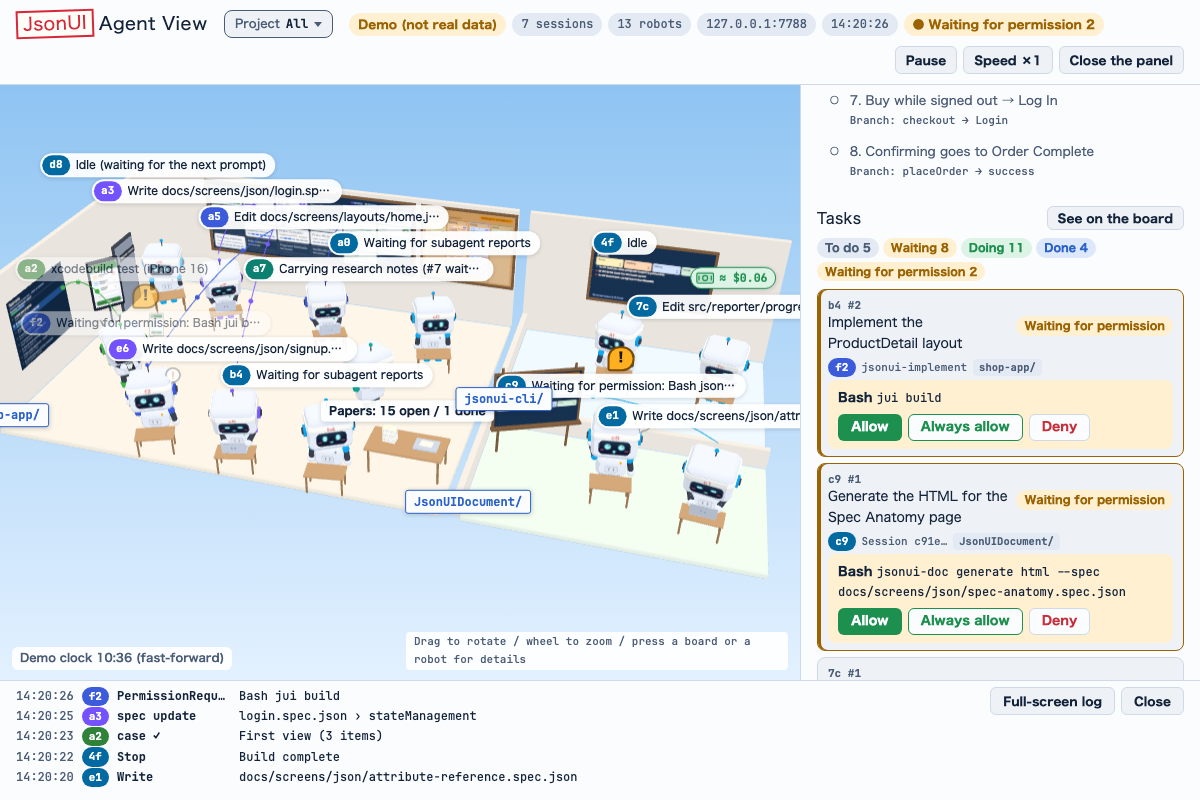 A permission card (demo data).
Allow or DenyAllow (許可) lets this one call run. Deny (拒否) refuses it.
Always allow (hooks only)"Always allow" (今後も許可) can add only a rule the request itself suggested. Before it is added, the rule and the file it is saved to are shown.
In that check, Always allow these (この内容で今後も許可) adds the ticked rules; what you untick is not added. A request with no rule to suggest has no Always allow button.
Deny with a reason (hooks only)A denial can carry a reason, and the reason is passed to Claude. The field is optional, e.g. Get jui build to pass first.
Answered in the terminal firstIf you answer in the terminal first, that answer is used.
A card no hook closesWhen Claude Code's built-in safety check asks about a call and nobody answers, its prompt times out after about two minutes. No hook reports that, and the turn goes on.
So jui viz closes such a card from the call's result in the session's transcript, which it reads every 2 seconds, the subagents' too (a workflow's child's as well). A card you had not answered on the page then reads Ended without an answer when that prompt timed out, Denied in the terminal when the person or the auto mode classifier refused, and Allowed in the terminal when the call ran, whether it succeeded or failed. A card is tied to its call by the call's id, never by order, so another call that ends meanwhile does not close it. A card that never learnt its call's id is closed only when it is that agent's one waiting card with the same tool and the same input.
A card over 10 minutes oldTime alone closes nothing. The card stays and says Over 10 minutes old. Whether it still waits cannot be told from here (the receiver's own screen shows it) (10 分以上たっています。まだ待っているかは、ここからは分かりません(受け手の画面で確かめられます)). It can still be answered.
• A card ends when its call does: an answer, the call's result in the transcript, the session's Stop or SessionEnd, or the session's process having gone. A subagent's card also ends with that subagent's SubagentStop, and only that subagent's. A Stop of the main session while background work goes on ends the main session's own cards and leaves the subagents'.
• Close (閉じる) appears from 10 minutes on, and the server refuses it earlier. Closing only removes the card from viz. Nothing goes to the receiver: it is neither allowed nor denied. If the receiver is still waiting, answer it on its own screen.
• A closed card does not come back on a reload, and a result that arrives later brings none. The event log reads Card closed (nothing went to the receiver) and the robot reads Card closed (the receiver may still be waiting), unless another card of its own is still open.
Measured here by driving the shipped card code directly, with no server and no browser: a card stays at 10 minutes and at 12.9 hours; Close is refused just before 10 minutes; an old card's answer reaches a waiting hook; closing gives that hook nothing to print and the session nothing to read; the endings of a subagent and of a Stop with background work close only the cards named above. Not measured here: the card in a browser, a real workflow's child, and the receiver's screen after Close, which jsonui-cli has not measured either.
When the card sends you to the terminalA card says Please answer in the terminal when the relay is off for that session, or when the request is too long to show in full.
Answer Claude's questions from the browserWhen Claude asks you a multiple-choice question (AskUserQuestion), the page shows it as a card. A question never appears as a permission card.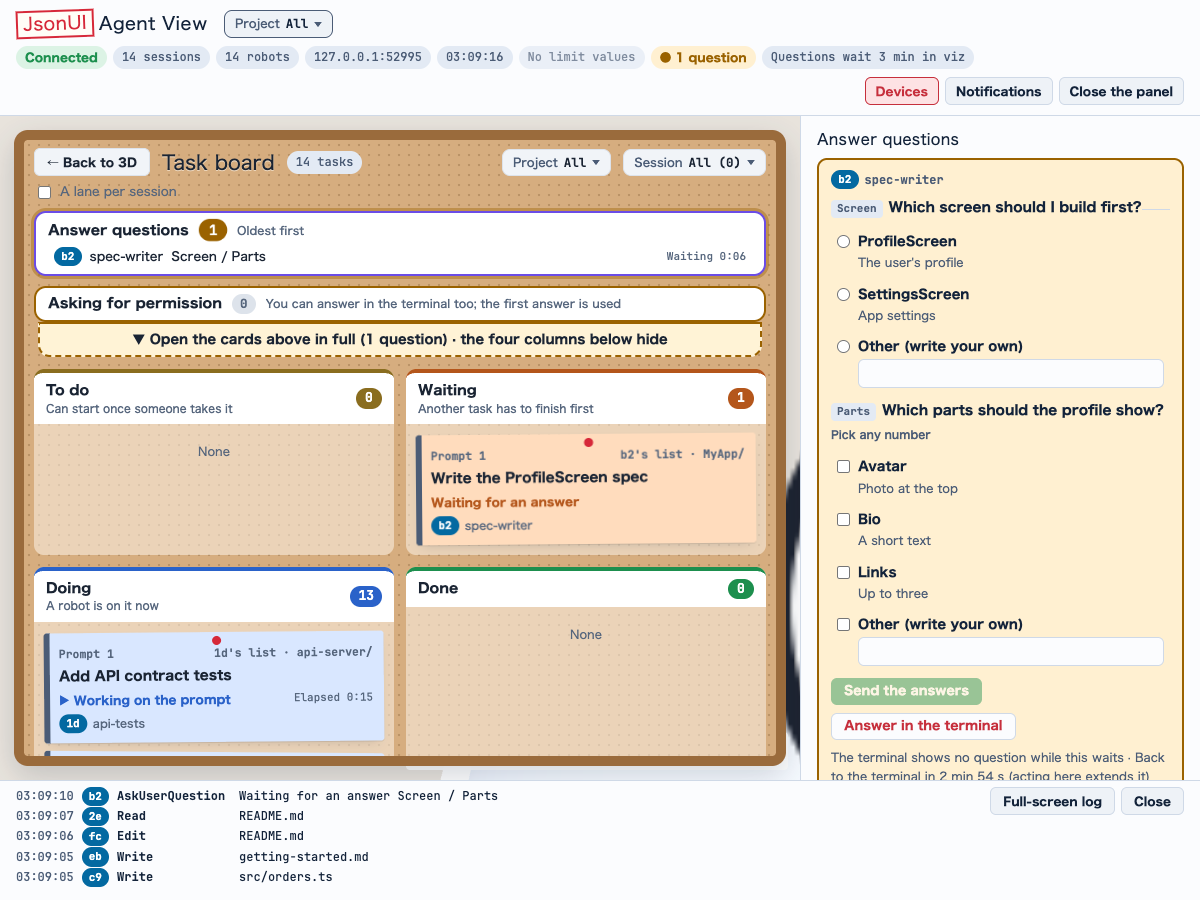 A question card with the time left before it goes back to the terminal.
1
Pick an answer for every question. A question can be single choice or multiple choice, and each has Other (write your own) (その他(自由記述)) for a free answer. Descriptions and previews are shown.2
Press Send the answers (答えを送る). The answer goes to Claude, and the terminal does not ask.How long it waitsHow long jui viz waits is set on the page: 3 minutes by default; over 5 minutes needs the current plugin. See Notifications and the question window. Every input on the card extends the wait, and the card counts down the time left before the question goes back to the terminal.
When it waitsIt waits while a page is showing, or while a page you are not looking at has question notifications on and allowed.
Answering in the terminal instead"Answer in the terminal" (ターミナルで答える) hands the question back to the terminal, and so does nobody answering. If you answer in the terminal instead, the card closes at the session's next step.
A card that can no longer be answeredWhen the page's answer is no longer waited for (the time ran out, the question went back to the terminal, or the session is not waiting on the relay), the card says why at the top and its choices are greyed out.
A question over 10 minutes oldA question's card stays until the session moves on: its Stop or SessionEnd, or its next question or prompt.
A card over 10 minutes old whose answer is no longer waited for (above) says Over 10 minutes old. Whether it still waits cannot be told from here. (10 分以上たっています。まだ待っているかは、ここからは分かりません。) and has Close (閉じる). Closing only removes it from viz: no answer is given. A question a hook still waits on has no such words and cannot be closed.
Measured here by driving the shipped card code directly, with no server and no browser. Not measured here: the card in a browser.
Your answer stays while you write itThe choices you pick and the text you type in a question card, and a deny reason on a permission card, stay when the card is drawn again, for example when another question or permission arrives. The same question in the panel, on the board's strip and in a robot card's box shares one draft. It is dropped when you send the answer or hand the question back to the terminal.
Calls stopped by auto modeWhen Claude Code's auto-mode classifier stops a call, a card for it appears in the panel's Actions denied by auto mode (自動モードが止めた操作) section and in the board strip of the same name, oldest first.The header shows a Denied (止められた) N chip that opens the board, and a notification can be turned on. The card is made from the PermissionDenied hook or from the denial in the transcript.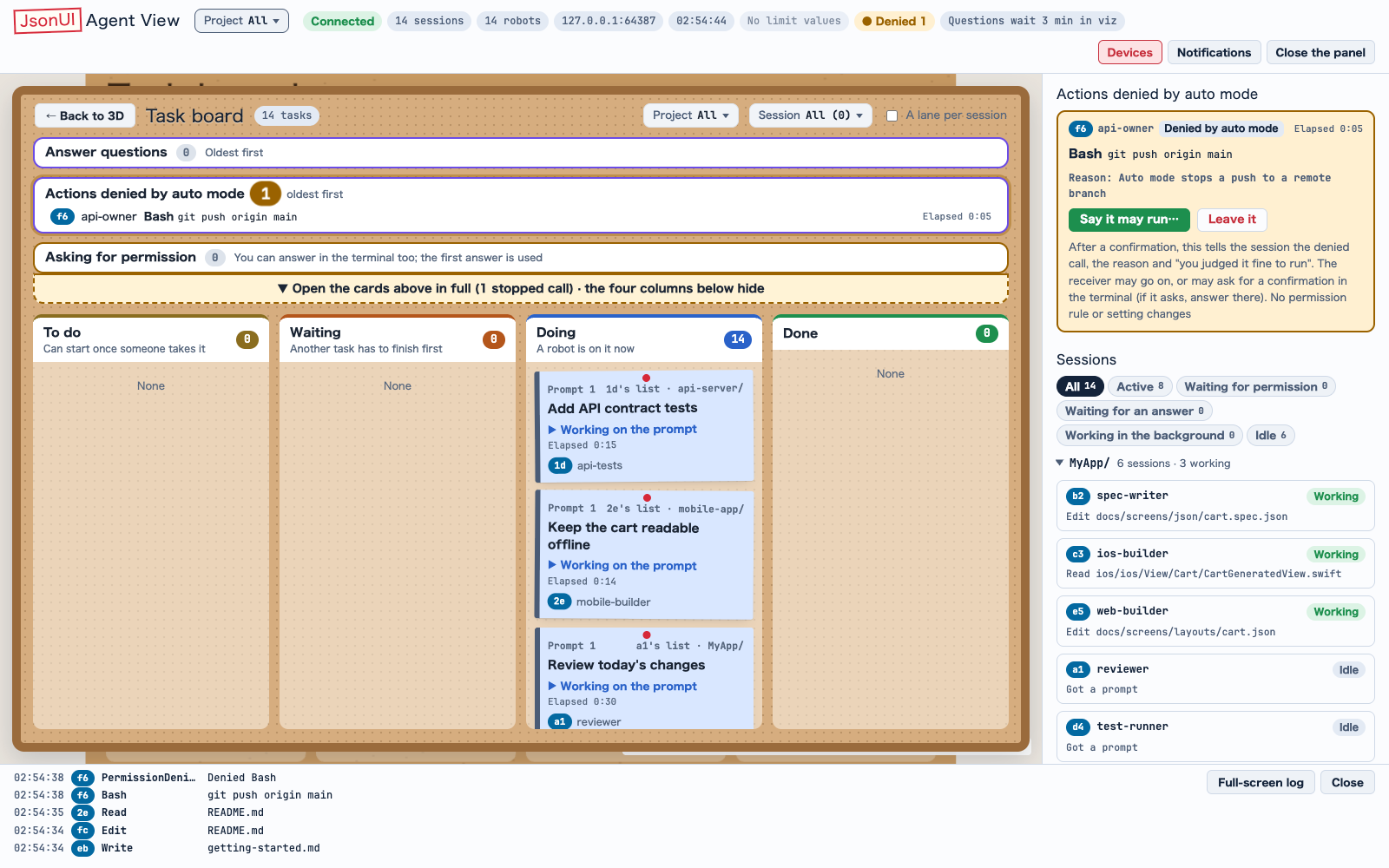 A call stopped by auto mode.If you judge the call fine to run
1
Press Say it may run… (実行してよいと伝える…). The exact text that will be sent is shown first.2
Press Send (送る). The text goes to that session as a prompt.3
Read the session's next reply, which the card shows after sending.What the text saysIt says that it was sent from the card's button, names the stopped call and the reason as the card shows them, says you looked at it and judged it fine to run, asks the session to try again, and asks it to say so if the classifier stops it again or it judges a terminal confirmation is needed.
Leave it, or a session that cannot take a promptLeave it (そのまま) closes the card and sends nothing. A session that cannot take a prompt gets the reason instead of the button; tell it in the terminal.
The card changes no ruleThe card changes no permission rule or setting, and does not promise that the session goes on: a session is careful with words that arrive through a channel and may ask for a confirmation in the terminal. Answer it there.
Answer from the History tabA robot's History (応答の履歴) tab shows its session's cards (a subagent's too) between the history and the prompt box: the permission prompts first, then the questions, then the calls auto mode stopped. The Now (今の様子) tab has no cards.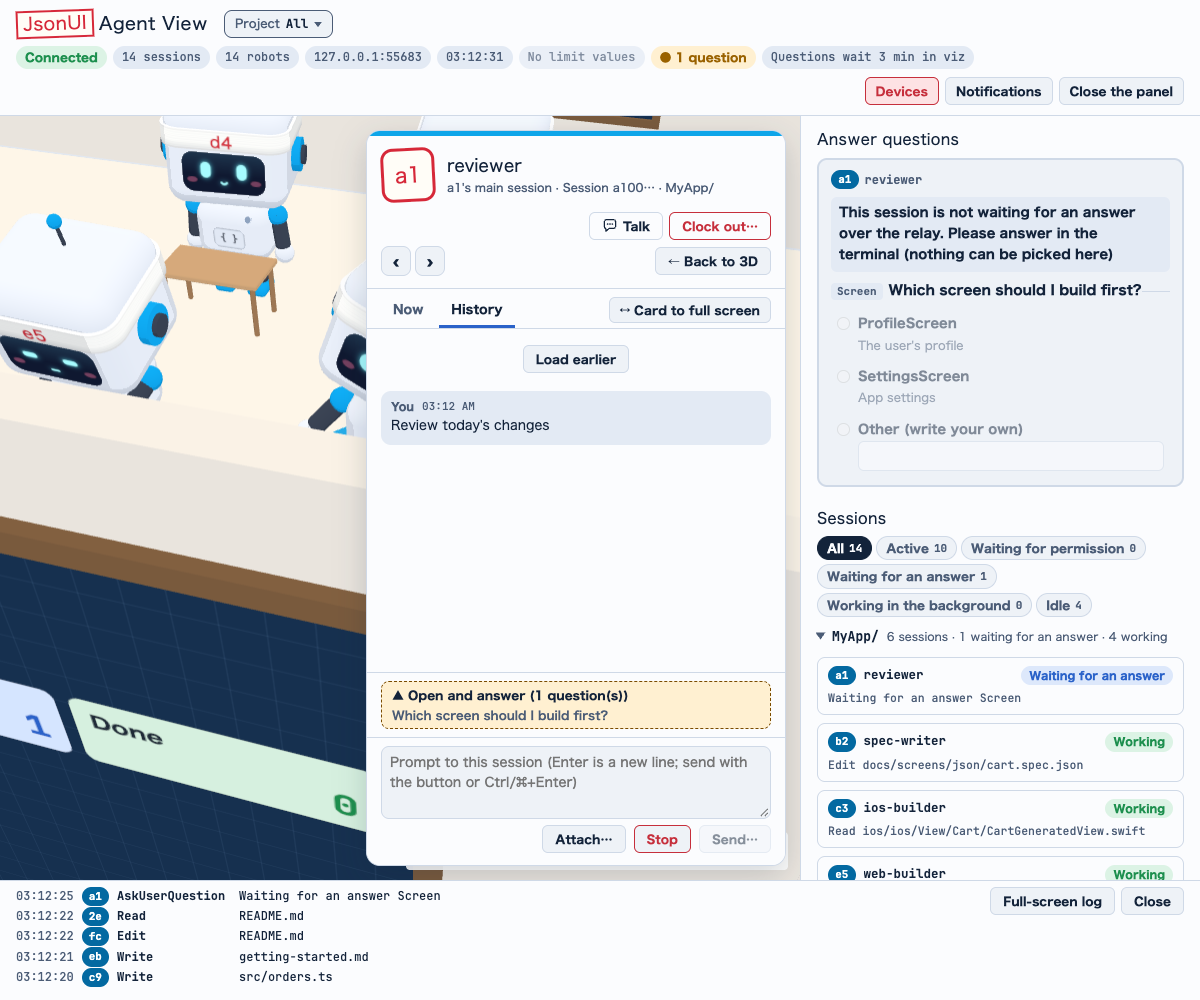 The box of cards folded to its bar.
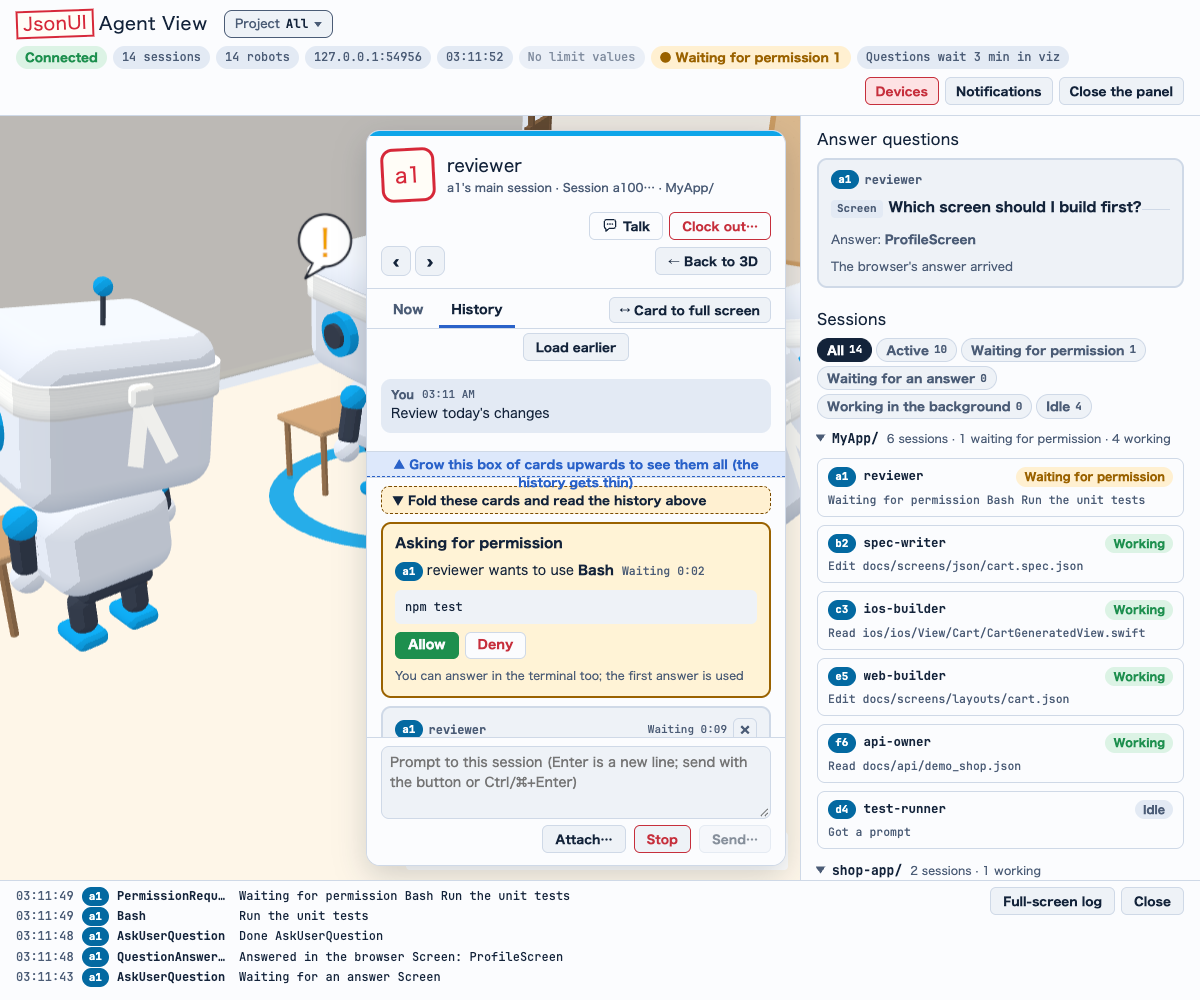 Cards under the history, above the prompt box.
Which cards appearThey are the same cards as the panel's and the board's, answered the same way; answered in one place, they show as answered everywhere.
Shown are: a permission waiting, a question waiting or answered in the last 30 seconds, and a stopped call waiting or settled in the last 60 seconds. The box scrolls on its own and is hidden when there are none.
Clearing a card from the boxAn answered question and a settled stopped call have a × in this box that takes that card off here only: the panel, the board and the history's rows keep it, and this browser remembers it after a reload. A card still waiting, and every permission card, has no ×.
Making room for the cardsA button next to the one that widens the card gives the cards and the prompt box the height they need and leaves the rest to the history; pressed again it goes back. The choice is kept in this browser.
Each of these buttons says what grows: ▲ Grow this box to see all cards (less history) (▲ この札の欄を上へ広げて、全部見る(履歴は細くなる)) and ▼ This box of cards back to its height (more history) (▼ この札の欄を元の高さに戻す(履歴を広く)), beside ↔ Card to full screen (↔ カードを全画面に) and ↔ Card back to its width (↔ カードを元の幅に).
Two prompts in one sessionWhen a session has two permission prompts, each card's deny reason goes to its own prompt.
Folding the cards to read the historyWhen cards wait in the box, a bar on top reads ▼ Close to one line (1 permission(s)). Press it and the box folds to one line, ▲ Open and answer (1 question(s), 1 permission(s)), followed by the first question's words, or the first permission's, and the history gets the height. Folded cards are only hidden: what you typed or picked in them stays. The bar stays in view while the box scrolls.
The fold is per robot. A new wait while folded keeps it folded: the bar counts it and stays marked until you open it (it moves once, not with reduced motion). The fold you choose holds while an answer is on its way, and is forgotten when nothing waits any more, so the next question or permission comes open. While folded, the button that grows the box is hidden.
The box of cards folded to its bar.Waits of other robotsWhile one robot's card is open, the other robots' permissions, questions and stopped calls are summed in a block beside the card (on a narrow page, a Waiting N (待ち N) badge in the card's head). Press a robot there to open its card. See The robot card in Panels, cards and boards.
Cards under the history, above the prompt box.Keep reading
jui viz`jui viz` shows the Claude Code sessions and subagents running on your machine (and the Codex sessions too) as rooms and robots in the browser. Start with the demo below, then pick the article for what you want to do./viz
Slack setupMake the Slack app, choose its scopes, take the tokens, turn on Socket Mode, write slack.json, start the robot, and read the room's errors./viz/slack-setup
Watching testsSeeing a JsonUI test run on iOS, Android or the web, and reading whether it passed./viz/tests