
← jui vizThe room and its robotsEach project is a room and each Claude Code session is a robot at a desk. This article shows how to move between rooms, tell the robots apart, read what each one is doing at a glance, and what they do on their own.9 min read
Rooms and doorsThere is one room per project folder. A folder with `jui.config.json` is treated as a JsonUI project. Rooms have doors, and robots walk from room to room through them.Looking at one room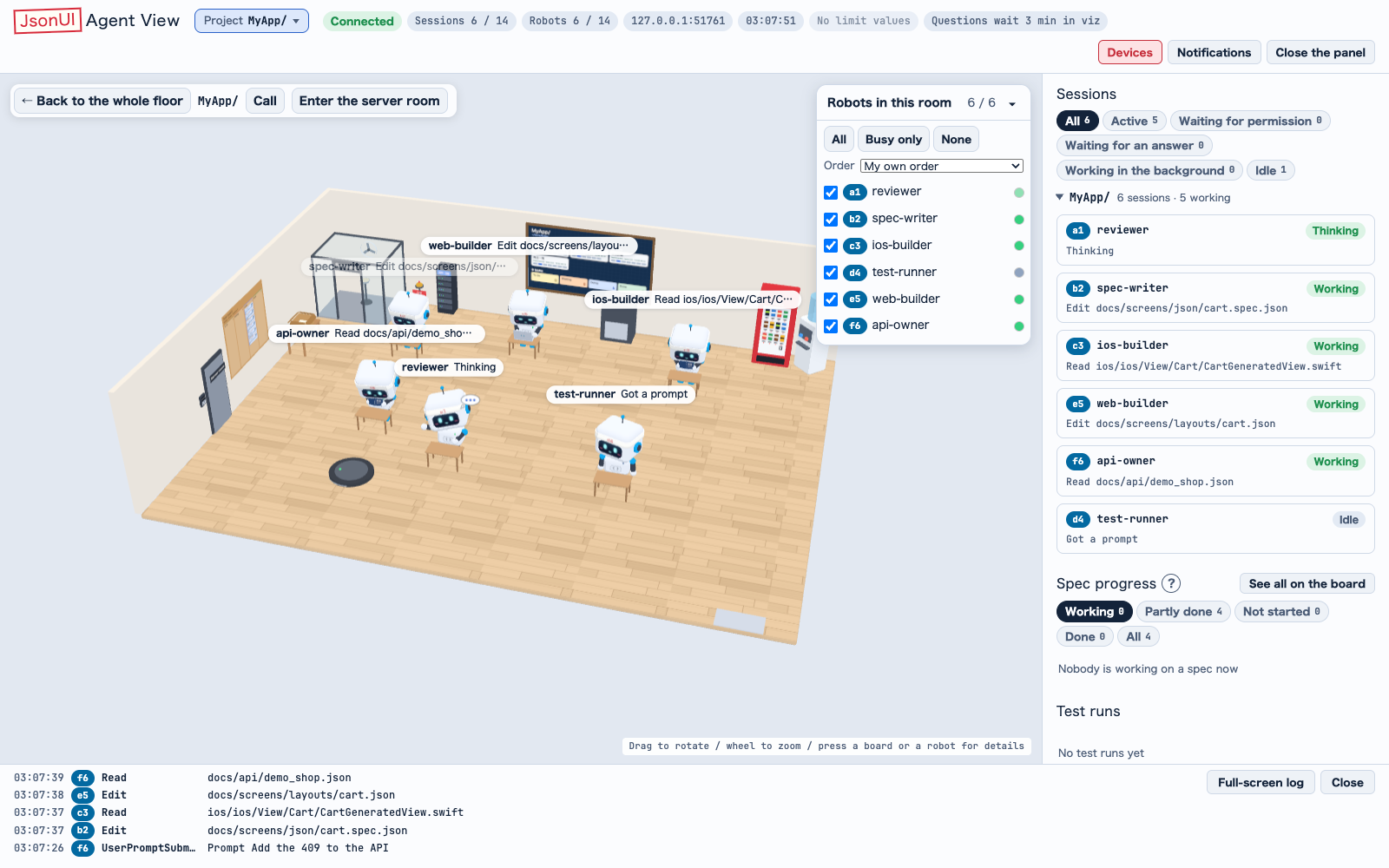 A room shown alone, with 10 robots or fewer.
1
Pick a room: its tag, its floor or the menu. The room shows alone, laid out 1.6 times wider and deeper.2
Press ← or → to go to the previous or next room on the same floor. From the last room it goes round to the first.3
Press ← Back to the whole floor (← フロア全体に戻る) or Escape to bring the whole floor back.4
On the whole floor, ↑ and ↓ go up or down a floor.A room shown alone, with 10 robots or fewer.The room's signA room's name is a framed sign that stays in front of the robots' name tags.
The furnished room (10 robots or fewer)A room shown alone with 10 robots or fewer gets a wooden floor, a water server in a back corner and a robot vacuum that keeps clear of the desks, the robots and the front aisle.
It also has a smoking room in the back-left corner (two robots at most) and a vending machine beside the water server (one at a time). Robots that have been idle for a minute now and then go there for a break.
Past 10 robots, only these go: the wooden floor, the water server, the robot vacuum, the smoking room, the vending machine and the breaks.
Things you can press, at any number of robotsA room shown alone keeps the things with a use whatever the number of robots: the shredder, the git box, the bell, the data-server rack and the server room's door.
• Data-server rack: in a room with OpenAPI files under docs/api or docs/db (JSON, or YAML: .yaml or .yml). Press it for the API and DB documents (endpoints, and per database an ER diagram and its tables). An endpoint's parameters are listed as OpenAPI reads them: the ones written on the path item, which every operation under it inherits, with the operation's own; one of the same name and place written on the operation is listed once, in the inherited one's stead, and a local $ref is read.
• Server room door: in a room with docs/infra (see the Server room article).
• Bell: see Call below.
• Git box and shredder: see Reading a robot at a glance.
Call (呼び出し)Press the desk bell in the room, or the button by the room's name. Type a name and a role, and it builds a command that starts a new session in that room. Copy it and run it in a terminal yourself: jui viz runs nothing.
The dialog has a Claude Code tab and a Codex tab. The Codex tab's line starts the Codex daemon and then codex, and can choose a model from LM Studio or Ollama (see Codex sessions).
Enter the server room (サーバールームに入る)Beside Call (呼び出し), by the room's name, a button Enter the server room (サーバールームに入る) opens the room's server room, as a press on its door in the 3D does. It can be reached from the keyboard too.
It shows in every room shown alone on the live page. In a room with no docs/infra it is greyed out and does nothing; its tooltip says No docs/infra here, so this room has no server room (docs/infra が無いので、この部屋にサーバールームはありません). See the Server room article.
This bar, Call and Enter the server room stay up and take the press while a robot's card is open; the spec board and the task board take the view.
When a robot stands in the wayThe bell, the data-server rack and the server room's door and keypad can be pressed even with a robot in front of them. The robot still opens from the rest of its body and its name tag.
A robot's name tag or bill over the bell, the rack or the door is drawn faint and lets the press through, and a wait bubble does the same by its own box.
What a robot isEach session has one robot for its main agent and one for each subagent. A subagent walks in through the door when it is called and walks out when it is done. Each robot's desk is placed at random and stays put while the page is open.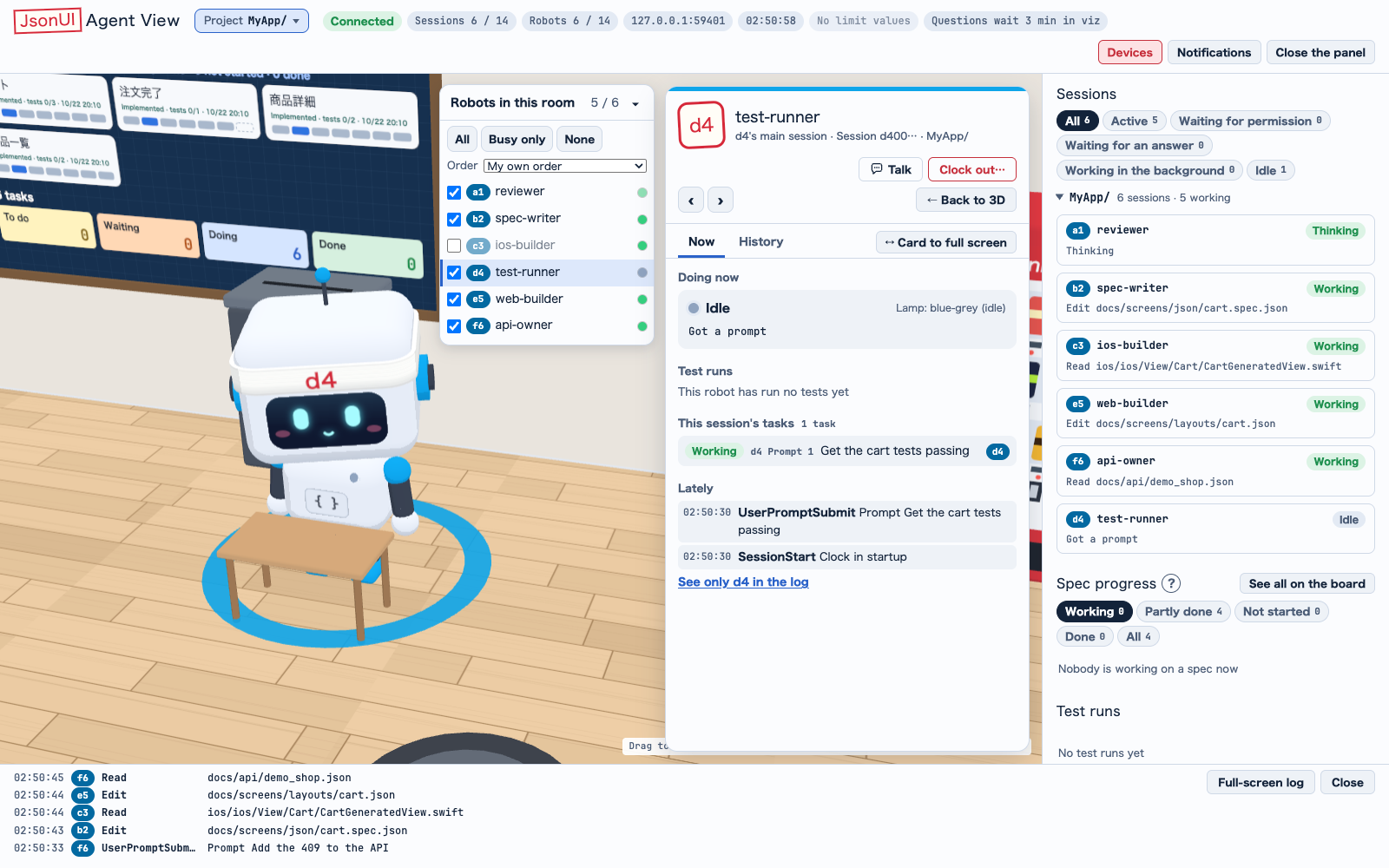 An unchecked robot (greyed out) leaves the 3D; the open card's robot has the marked row.
Main robot or subagentA main robot is sky blue. A subagent wears an orange coverall and a work cap with a patch in its role's colour, at 0.8 times the size.
The role tags (main, define, ground, navigation, test and other) are white text on a darker shade of the robot's colour, so they read clearly.
Headband and name tagThe text on the headband is the start of the session id.
The name tag shows the session's name (/rename, or claude -n at start), and the two-character mark only when there is no name. Tags of two robots close together are moved apart so both can be read.
Pressing a name tag (or a bill) opens the robot's card, as pressing the robot does.
Robots in this room (この部屋のロボット)Show only the robots you wantA list sits at the 3D's right, one row per session with a check, its number and name, and a lamp of its state.
• Uncheck a row to hide that robot. Subagents follow their main session's check.
• All (全部), Busy only (作業中だけ) and None (なし) switch every row at once. Busy only means any state but idle and done, waiting included.
• Fold or open the list (一覧をたたむ・開く) folds it. On a narrow page it opens folded at the foot of the 3D.
What you hide is kept per room in this browser, and a new session comes in shown.
What hiding changes, and what it does notAn unchecked robot leaves the 3D with its desk, tag, bill, wait bubble and spirit, and a game, nap or break it is in ends; its desk stays empty.
A hidden robot waiting on you (a permission, a question, input) marks its row, and the list's head counts them.
It changes only what is drawn: the panel, the header's chips and the notifications still count every robot. The list goes while a board (the whiteboard, the task board, the server room, the data server, the bills) or a page-wide dialog is open.
The selected robot's rowThe row of the robot whose card is open is highlighted; for a subagent it is its main session's row. Each time you select a robot, the list scrolls just enough to show its row. A row you scroll away by hand afterwards stays where you put it.
With a card open, the list moves left out of the way of the card and of the other robots' waits shown beside it. Where the 3D has no room left of them, it goes below the waits.
Put the list in orderPick an order in Order (並べ方) at the list's head:
• My own order (自分で並べた順), the default
• By name (名前順)
• By state (waiting first) (状態順(待っているものが上)): waiting on you, then at work, then idle, then done
• Most recently active (最近動いた順)
To make your own order, drag a row, or press Alt+↑ or Alt+↓ on it. Moving a row while another order shows starts your own order from the one shown. The order and your own order are kept per room in this browser, and a new session goes at the end of your own order.
With a robot's card open, the card's ‹ › and the ← → keys go through the robots in the list's order, skipping the ones you hid, a main session's subagents right after it. On the whole floor they go room by room, each room in its own list's order.
An unchecked robot (greyed out) leaves the 3D; the open card's robot has the marked row.Reading a robot at a glanceA robot's lamp, pose and what floats over its head tell you what its session is doing. The basic states are idle, typing (writing a file), reading, command, phone (a test on a device), waiting for permission, carrying (a new deliverable is ready) and done. The cards below are the looks worth knowing.Waiting on you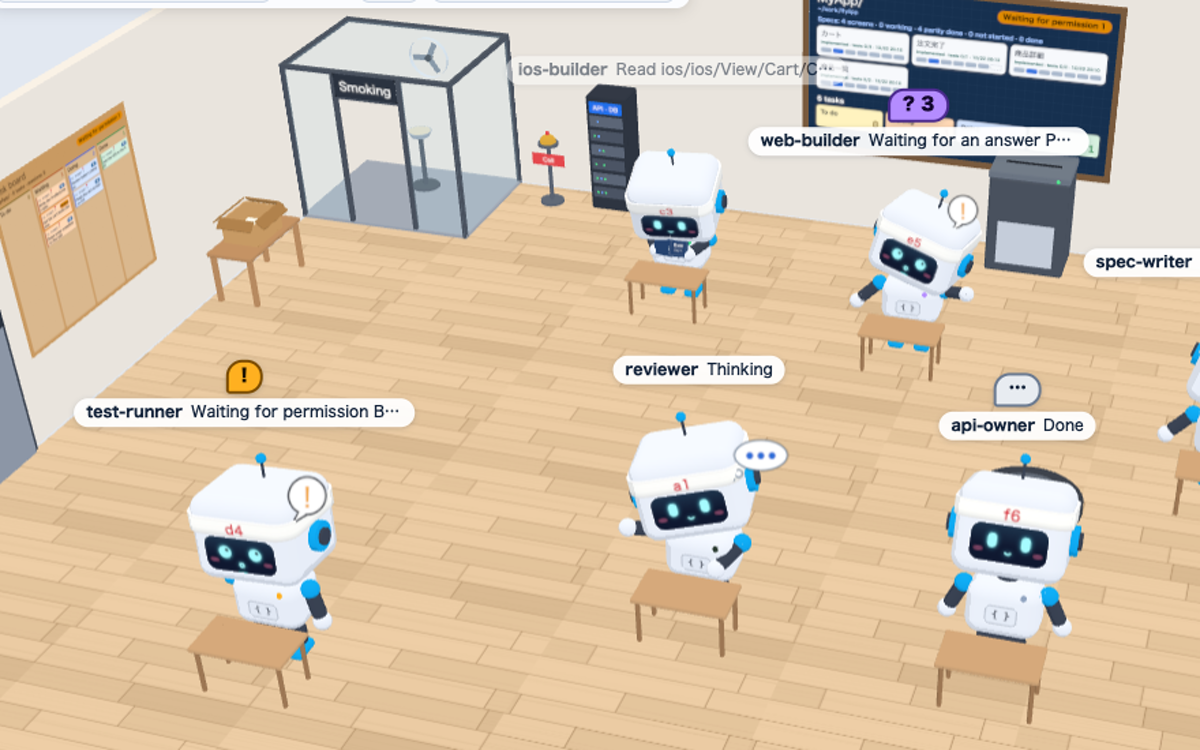 Permission, question and input, each with its own bubble.Working
Waiting for permission → amber !An amber ! bubble over the head, also for a call auto mode stopped. Pressing it opens the side panel at that permission request (or the stopped call's card).
Waiting for an answer (質問に回答待ち) → violet ?A robot waiting on a question from Claude reads Waiting for an answer (質問に回答待ち), not Waiting for permission (許可待ち), and the session list has its own Waiting for an answer (質問待ち) filter.
It shows a violet ? with the number of choices in the first question (? 3, say), puts a hand to its chin, and its lamp is violet. Pressing the bubble opens the side panel at that question's card.
Waiting for input → grey …A main session whose reply ended about a minute ago with no answer since gets a grey … bubble, and the robot leans back while it idles. Pressing the bubble opens the robot's card at its talk.
The bubble goes when the session moves again or when you open that robot's card on this page. The header gains a … Waiting for input (入力待ち) N chip that opens the talk of a session waiting for input.
Stopped at the usage limit → dazed, pink lampA session whose turn ended on the plan's usage limit is told apart from one that failed for another reason: its robot slumps with × eyes, a zigzag mouth and stars circling its head, and its lamp is pink. It reads Stopped at the limit (上限で停止), with its own badge and a Stopped at the limit filter chip in the session list, and the card shows the limit's own words, which say when it resets. The log reads Stopped (usage limit) (停止(使用量の上限)).
It stays so until the session's next prompt or start. Claude Code's is told by its StopFailure hook (the error rate_limit; other errors stay Stopped (failed)); Codex's by a turn failing on the usage or rate limit. Under reduced motion the stars stand still.
One bubble per robotA robot shows one bubble, in the order permission, question, input. Pressing the robot or its name tag does what it did before. The building's windows also tell ? Waiting for an answer (質問待ち) and … Waiting for input (入力待ち) apart from ! Waiting for permission (許可待ち).
Permission, question and input, each with its own bubble.WorkingBackground → light on, headsetA session whose turn ended with background work still running (a test run, say) keeps its light on and watches the screen until that work ends.
It wears a headset with notes rising. While three or more of its subagents work, it takes the headset off and whistles.
Heavy work → red face, blue face or whistleHeavy work has three looks, by its reason:
• many output tokens (2,000 a minute or more over the last two minutes): a red face and fast typing;
• one tool running for a minute or more: a blue, tired face;
• three or more of its subagents working at once: a whistle and Phweet! (ピッ!).
When reasons overlap, the looks take turns every 4 seconds.
Web lookups → dictionaryA robot using WebFetch or WebSearch leafs through a dictionary on its desk instead of holding a book; its state stays reading. Under reduced motion the dictionary stays open.
Calling a subagent → Phweeeet!A robot that calls a subagent (the Agent tool) blows a whistle with Phweeeet! (ピーッ!) for 2.5 seconds, only while it is at its desk, not while walking or playing. Under reduced motion the whistle is only held.
Git box and shredderWhen a session pushes with git in its Bash tool, its robot carries papers to the box; on a pull it carries them back to its desk, with the branch, the number of commits and +/− over its head.
When it deletes something (rm, rmdir, unlink, trash, git rm, git worktree remove, find -delete or -exec rm), it takes papers to the shredder.
Only commands a Claude session runs in Bash are seen: not your own terminal, your editor's git, a merge on GitHub, or a deletion inside a script.
BillsA banknote with the estimated cost of each response (≈ $0.12) rises over its robot. It is the official price times the response's tokens, an estimate: on a subscription it does not match what you pay. A model the table has no price for shows ? and the tokens, never a made-up amount. The built-in table has Claude Fable 5.2 (claude-fable-5-2), with the prices checked on 2026-11-10.
Turn it on or off with Bills (estimated amounts) (お札(概算の金額)) in the side panel's Settings (設定). Price table (単価の表) there, or `jui viz prices`, changes the prices, from the next response, with no restart.
A workflow's child has bills too, because jui viz finds its transcript (the session's subagents/workflows/<run>/ folder). Measured here: that a transcript in such a folder is found, and that another id is not. Not measured here: a bill from a real child.
What robots do on their ownRobots make phone calls and play, and a robot alone naps or eats. All of these are looks only: the panel, the task board and the server keep showing the real state.
Phone callsWhen one session sends another a message with SendMessage, the sender's robot holds a handset to its ear and the receiver's phone rings over its head. When the receiver reads the message, it picks up, both are on the line for a moment, and both go back to work.
A busy receiver reads it at its next tool step, so the phone can ring for a while; after 10 minutes unanswered it stops. The name tags show only ☎, the call's state and the other robot's number, never the message.
Calls ring only between Claude Code sessions on this machine. A message from a cloud session does not ring, and a message to a name that is not a session here moves only the sender.
PlayWhen two main robots in one room have been idle for a minute (a robot that finished counts from when it is idle again), they soon walk to the front of the room and play catch, high fives or rock-paper-scissors. A game lasts 15 to 35 seconds, counted from when the two meet there; then they walk back to their desks and rest 45 to 120 seconds.
At most three games run at a time, one per room, and none in a full room (one where some robots stand without a desk). Anything new for a robot, such as an instruction, a tool or a call, stops the game at once, and it walks back with its real lamp. With reduced motion there is no play.
What a game looks likeThe game shows on the name tag, the card and the building's window: Playing catch (キャッチボール中), High-fiving (ハイタッチ中), Playing rock-paper-scissors (じゃんけん中), Going to play (遊びに行く). The ball is bigger, a high five ends in Slap! (パチン!), and rock-paper-scissors shows the hands and who won (the winner raises both hands; a draw is played again).
AloneA main robot idle for a minute with no one to play with in its room naps at its desk (its head nods and a zzz floats up) or eats a bento, for 20 to 60 seconds. Its name tag shows zzz Napping (zzz 居眠り) or Lunch (弁当). It stops on the same things as a game, and not under reduced motion.
The times are fixedThese times are fixed; config.json does not change them.
Outside the building: seasons and the near weatherThe outside of the building changes with the season and, if you turn it on, with the weather near you. Only the trees, the plaza and the roof change; the rooms and the robots do not. The outside shows in the building view (two floors or more, that is seven rooms or more) and in the demo.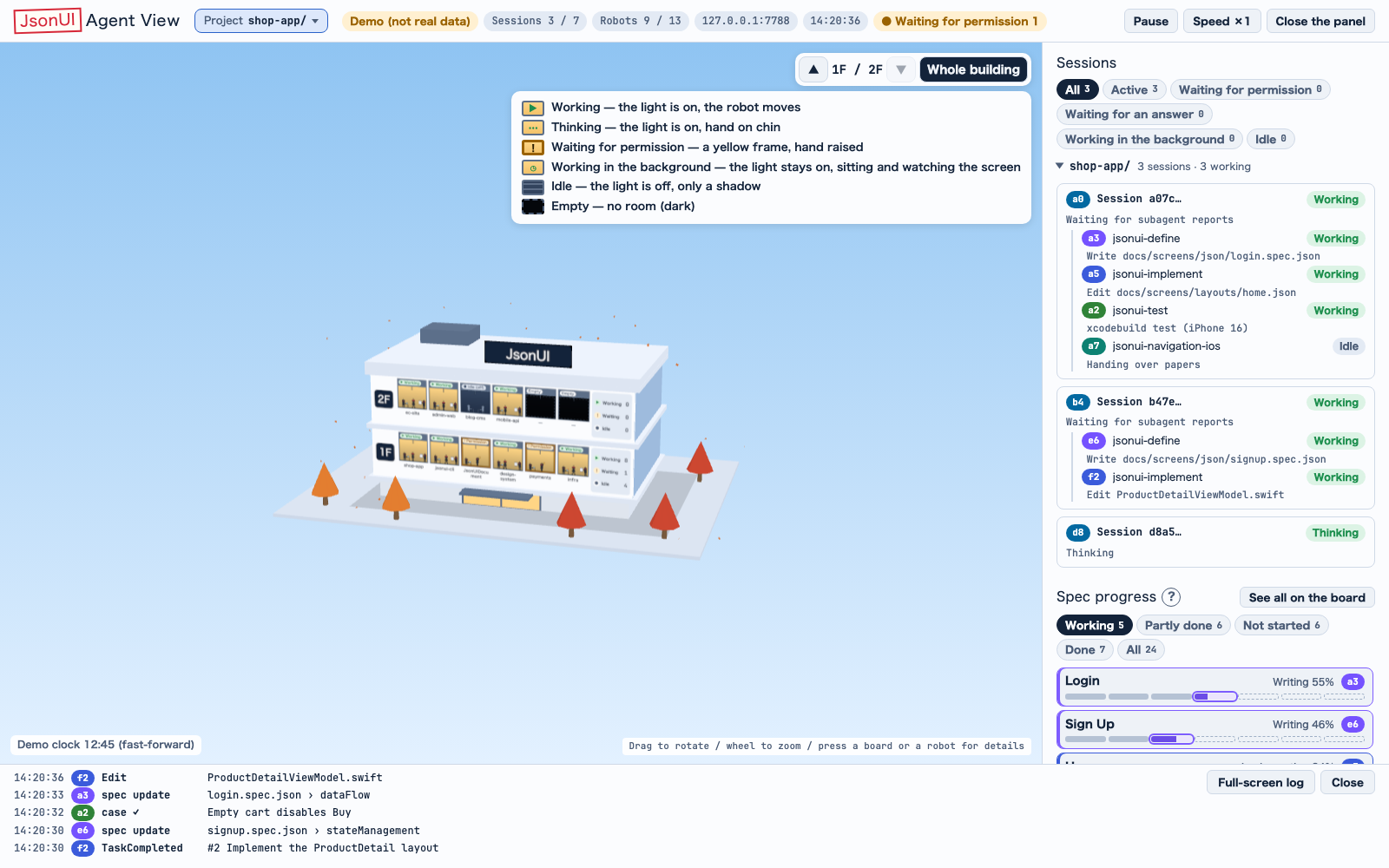 The outside follows the season; the rooms and robots do not change.
Season, always, from your machine's date (northern hemisphere)Spring cherry blossom with a few petals in the air, summer deep green with a cicada on each trunk, autumn red and orange leaves, winter bare branches and a thin snow on the plaza and the roof. Falling things stand still with reduced motion.
Weather, only when you turn it on1
Find the Local weather (近所の天気) switch: in the corner of the building view, and in the side panel's Settings (設定), so it works with fewer rooms too.2
Turn it on. The browser asks for your position; the permission dialog shows then, never when the page opens.3
Read the line under the switch: the weather, when it was last read, or why it failed.What is sent, and how oftenIt is off by default, and then jui viz makes no connection for the weather (the cloud price fetch is separate, see Safety).
When it is on, the position is rounded to about 1 km before it is stored or sent, and the jui viz server asks Open-Meteo for the weather there once every 30 minutes; the page itself asks no one but the server. Turning it off removes the position. A failed query is asked again sooner: after 1, 2, 4, 8 and 16 minutes, then every 30 minutes, and back to every 30 minutes once an answer comes; one query waits up to 20 seconds. `jui viz doctor` says when it tries again. Read by calling the shipped weather source, without asking Open-Meteo.
What you seeClear, cloudy, fog, rain, snow and thunder are drawn over the season, by day or by night. A failure keeps the last answer for up to 3 hours, then the outside shows the season alone. `jui viz doctor` says whether it is on, when it was last read and the last failure.
The outside follows the season; the rooms and robots do not change.Keep reading
jui viz`jui viz` shows the Claude Code sessions and subagents running on your machine (the Codex sessions too) as rooms and robots in the browser. Start with the demo below, then pick the article for what you want to do./viz
Codex sessionsCodex sessions in the same rooms, their permission requests on the page, starting one from the bell, and local models from LM Studio or Ollama. Also prompts from the card, the History tab and Clock out./viz/codex
Skill spiritsThe spirits that appear when a session uses a skill, and how to bring in 3D models of your own./viz/spirits