
← jui vizThe server room: open it and find your way aroundA guided tour of the 3D view of your infrastructure: how to open it, what the floors, shapes and lines mean, how to move the camera, how to show less, and how to read the board for one node.11 min read
Open the server roomThe infrastructure a project declares can be seen in 3D, in the room's server room. Its only source is the JSON you write under docs/infra (see Writing the infra model); jui viz never asks your cloud account anything.
1
Put at least one *.json in the room's docs/infra (or in the folder that jui.config.json's infra.dir names). There is no switch to turn on.2
Show that room alone, up close. A door signed Server room (サーバールーム) appears on the left wall in front of the cork board, with a keypad beside it.3
Press the door or the keypad (on the live page, also Enter the server room (サーバールームに入る) in the bar by the room's name). The keypad has no code: the * that appear are the progress of the read, and a bubble says Loading the server configuration (サーバー構成を読み込んでいます).4
On success the keypad shows Unlocked (解錠), the door opens and the server room takes the whole page. ← Back to the room (Esc) (← 部屋に戻る(Esc)) takes you back.Enter the server room (サーバールームに入る)With a room shown alone on the live page, the bar at the top left (← Back to the whole floor, the room's name, Call (呼び出し)) has a button Enter the server room (サーバールームに入る). It opens what the door opens, so you no longer have to find the door in the 3D, and it can be reached from the keyboard.
The button shows in every room. In a room with no docs/infra it is greyed out and a press reads nothing; its tooltip says No docs/infra here, so this room has no server room (docs/infra が無いので、この部屋にサーバールームはありません). The demo page has no such button; use its door.
If the keypad turns redWhen the files cannot be used, the keypad turns red and a bubble says which file is wrong and how. It never shows the value. The bubble goes after 9 seconds; hover over it to read the whole text. Fix the file (`jsonui-doc validate infra` gives the same verdict) and press the door again.
Escape cancels a read that is still running.
What jui viz reads, and whenjui viz only counts the files, every 5 seconds, to know whether to show the door. It reads them only when you press the door or the keypad.
The demo page has a door too, in the shop-app room, with a made-up shop behind it.
The bar along the top• ← Back to the room (Esc) (← 部屋に戻る(Esc))
• 3D / 2D / Cost (コスト): the 3D, the flat view from straight above (see Look from above: 2D) or the cost simulator (see Cost and migration plans)
• Environment (環境), Small things (IAM, alarms, …) (細かいもの(IAM・アラームなど)) and Lines (線): what is drawn (see Show less)
• + and −: zoom in and out
• Zoom to an area (範囲で寄る)
• Fit all (全体を見る)
• Board (ボード) and Log (ログ): show or hide those panels. The board is shown when the room opens; the log is hidden.
Read the floors, shapes and lines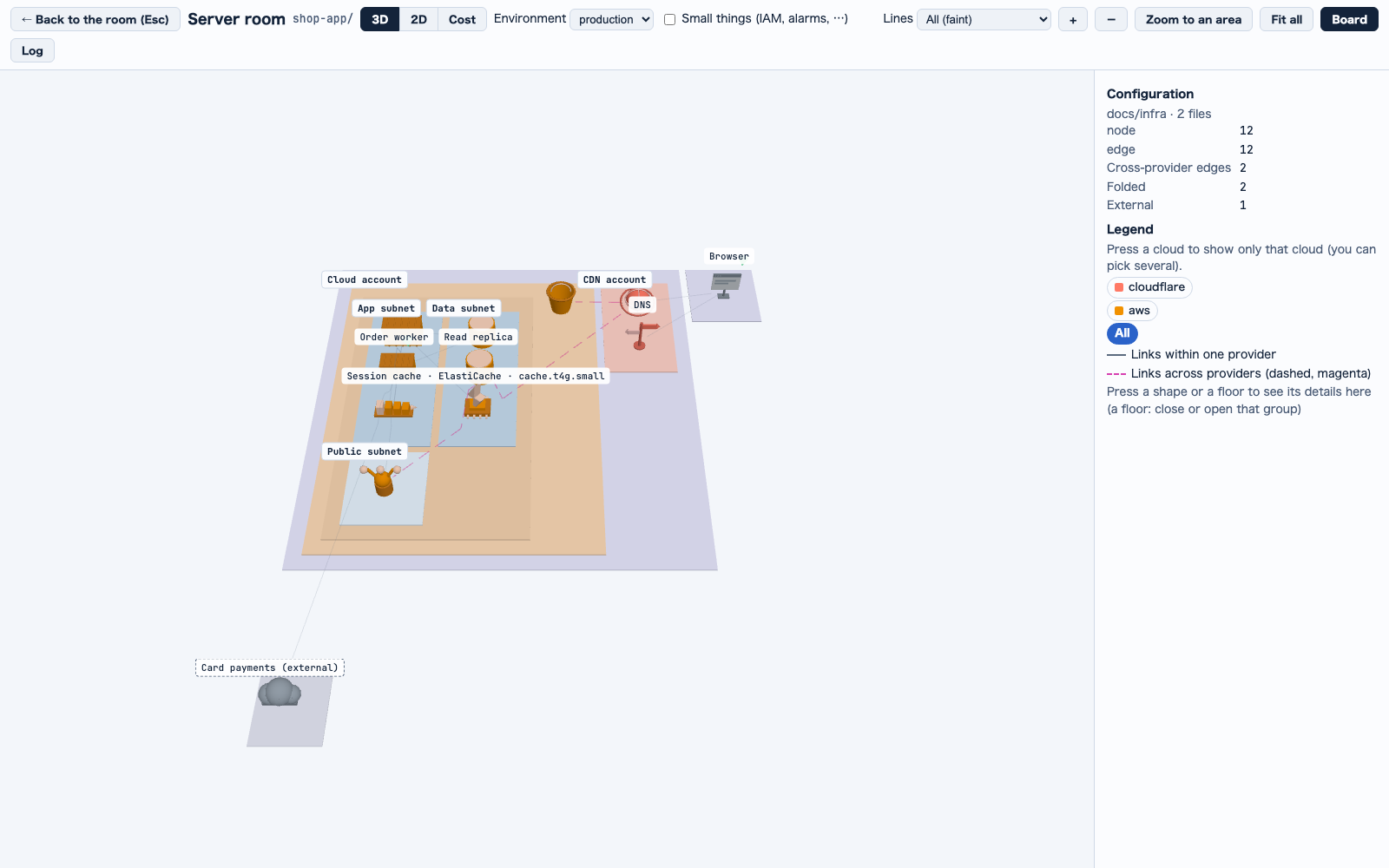 Fit all (全体を見る): every floor in one view.
Floors are groupsGroups (accounts, regions, networks, clusters and so on) become nested floors: a group's floor holds the floors of the groups inside it, and its nodes stand on it. Outside nodes (an external service, say) stand on a strip in front.
A group's tag starts at its floor's corner and runs right, inside the floor. Where it would cover a tag already placed, it stands a row higher (up to two) over its corner, the nearest group placed first.
Shapes from a distanceEach node takes a shape by its kind:
• compute: a rack
• a database: a drum
• storage: a bucket
• a queue: a belt
• the edge: a globe
• a load balancer: a gate
• a cache: a puck
• an outside service or a client: a kiosk
The colour says the cloud.
Shapes up closeZoomed in, with 30 node tags or fewer in view, the nodes take a second set of shapes by what they are: a function a slim pillar, a container a crate, Kubernetes a ring, a key-value or document store a tapered drum, a notification queue a pyramid, a stream a long belt, a WAF a shield, auth and secrets a key. It goes back to the plain shapes only past 40.
Each tag then reads name · service · its main spec, for example orders-db · RDS PostgreSQL · db.r6g.large; a size reads as its key and value, such as memory 2048. A node that runs more than one gets ×N.
Models up closeAt the same point, each node in view also stands as a model of what it does, in its cloud's colour: stacked disks for a database, a chip with a bolt on it for a cache, a bucket for object storage, messages in a row for a queue, a splitter for a load balancer, a globe for a CDN, a signpost for DNS, a shield for a WAF, a gate for a gateway, a bolt for a function, a server rack for a VM, a container, a helm wheel for Kubernetes, a browser window for a client, a padlock for auth, a key for secrets, a clock for a scheduler, an envelope for mail, a gauge for monitoring, a cloud for a SaaS, and a plinth for anything else.
There are 64 models at most; the ones out of view go first. Pulled back there are no models and the room is drawn as before, so it is no heavier there.
LinesLines within one cloud are faint and solid. Lines between clouds are dashed and strong; the board's legend calls them Links across providers (dashed, magenta) (provider を跨ぐつながり(破線・マゼンタ)). The lines of the picked node and of the node under the pointer are always drawn strong.
A cable is drawn as a strip that keeps its width on the page however far the camera is; its widths are in the next card.
Thinner lines, from side to sideLines not chosen are thin: at least 0.9 px on the page (1.1 px across clouds, 1 px for the bundles when zoomed out), and up to 1.8 px up close. The strong lines (the picked node's, the node under the pointer's, and those Show everything connected draws) are 3 px, up to 5 px up close, and a flow's light runs around its line.
A line runs low from the side of one node to the side of the other: each end stops at the node's outer edge as it is drawn (its shape, or up close its model), 0.3 above its foot and never above half its height. It stays straight and flat unless something stands in the way (another node, a closed group's box); then it rises once before it, passes 0.25 over the tallest thing in the way, and comes down after. Lines across clouds run a little higher. Zoomed out, the bundles run the same way, from the side of one box to the side of the other.
ColoursThe colours are one designed palette. Each cloud is one hue: a node takes the hue itself, a closed group a tone between, and the floor of a group the cloud owns (an account, say) a tint of it, the same in light and dark. A logical group's floor stays a soft lavender and a public or private network's a slate blue, whatever the cloud. The legend's chip, the nodes and the cost view's bars are that one colour, and the ground and the frames are a cool slate.
The background is #f3f6fa in the light theme and #0b1016 in the dark one, and the 3D is redrawn, the camera where it was, when the theme changes.
Move around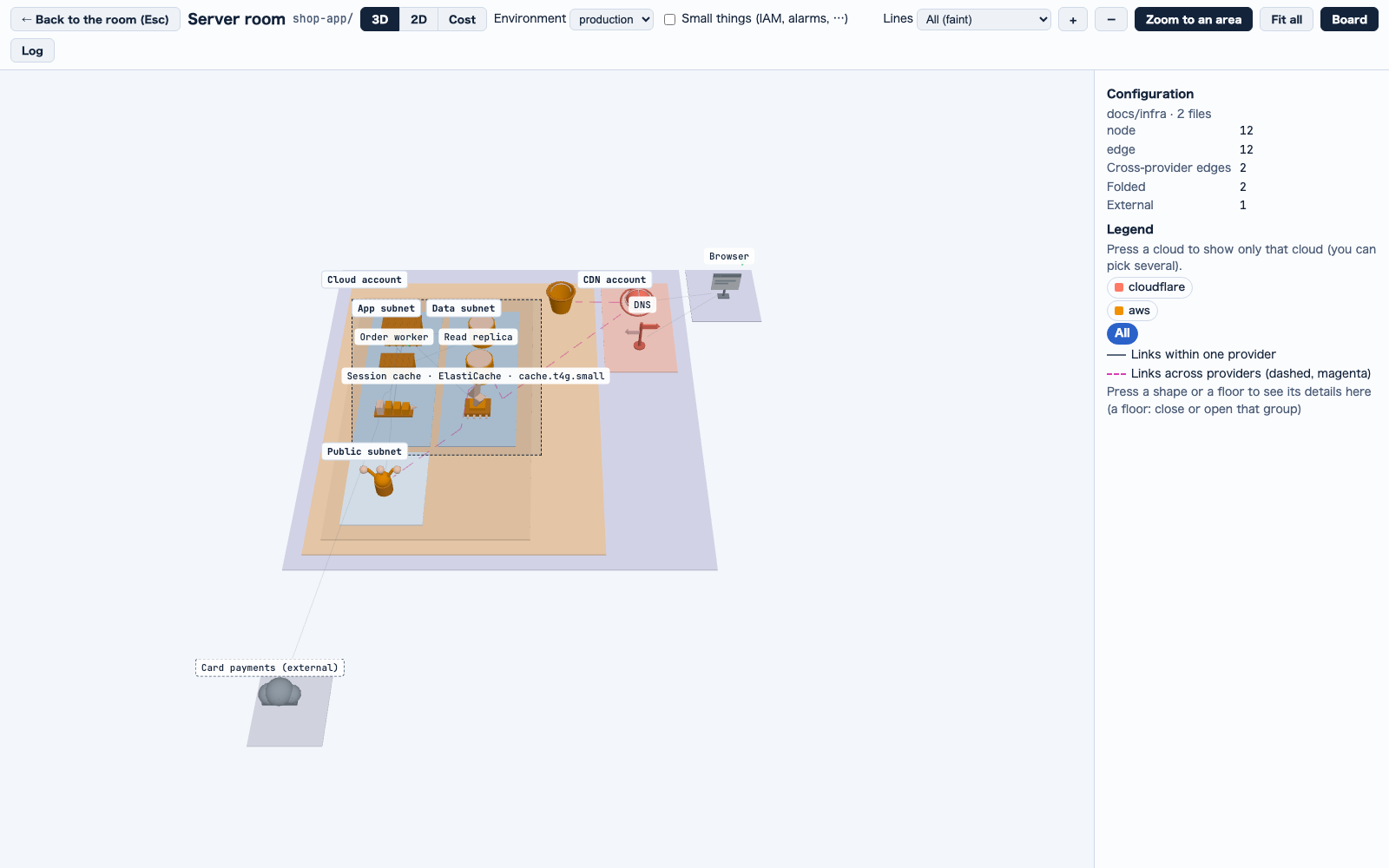 Zoom to an area: draw the box, let go, and the camera moves in on what it holds.
Mouse, trackpad and touch• Drag: turn the view.
• Right-drag, or Shift (or Ctrl, or ⌘) + drag: pan.
• Wheel: zoom in and out. The + and − buttons on the bar do the same in steps.
• Option (Alt) + drag: zoom to an area (below).
• On a touch screen: one finger turns the view, two fingers pinch to zoom and move to pan.
Fit all (全体を見る) always brings the whole model back into view.
In 2D the view does not turn: see Look from above: 2D.
Zoomed outZoomed out, groups close into boxes and the lines are bundled between them. Boxes cannot be picked: zoom in until the floors come back to pick a node or a floor.
Zoom to an areaDraw a box around what you want to see, and the camera moves in on it.
• With a mouse: hold Option (Alt) and drag with the left button.
• With a trackpad or a finger: press Zoom to an area (範囲で寄る), then drag once.
When you let go the camera keeps its direction and moves in until what the box held fills the page; an empty box moves in on its middle. A drag under 5 px, a second finger or Escape draws nothing. A plain drag still turns the view and Shift + drag still pans; Fit all (全体を見る) goes back.
Zoom to an area: draw the box, let go, and the camera moves in on what it holds.Zoom to one thingPick a node or a floor (see Select a node and read the board) and press Zoom to this (これに寄る) on the board: the camera moves in on it.
What Escape doesEscape undoes one thing at a time: first a box being drawn (or Zoom to an area armed), then Show everything connected, and only then it leaves the server room. While the model is still being read, Escape cancels the read.
Look from above: 2DThe server room can also be drawn flat, from straight above. It is the same room from the same model: the floors, the board, the filters, the zooms, Show everything connected, flows and migration plans work as they do in 3D.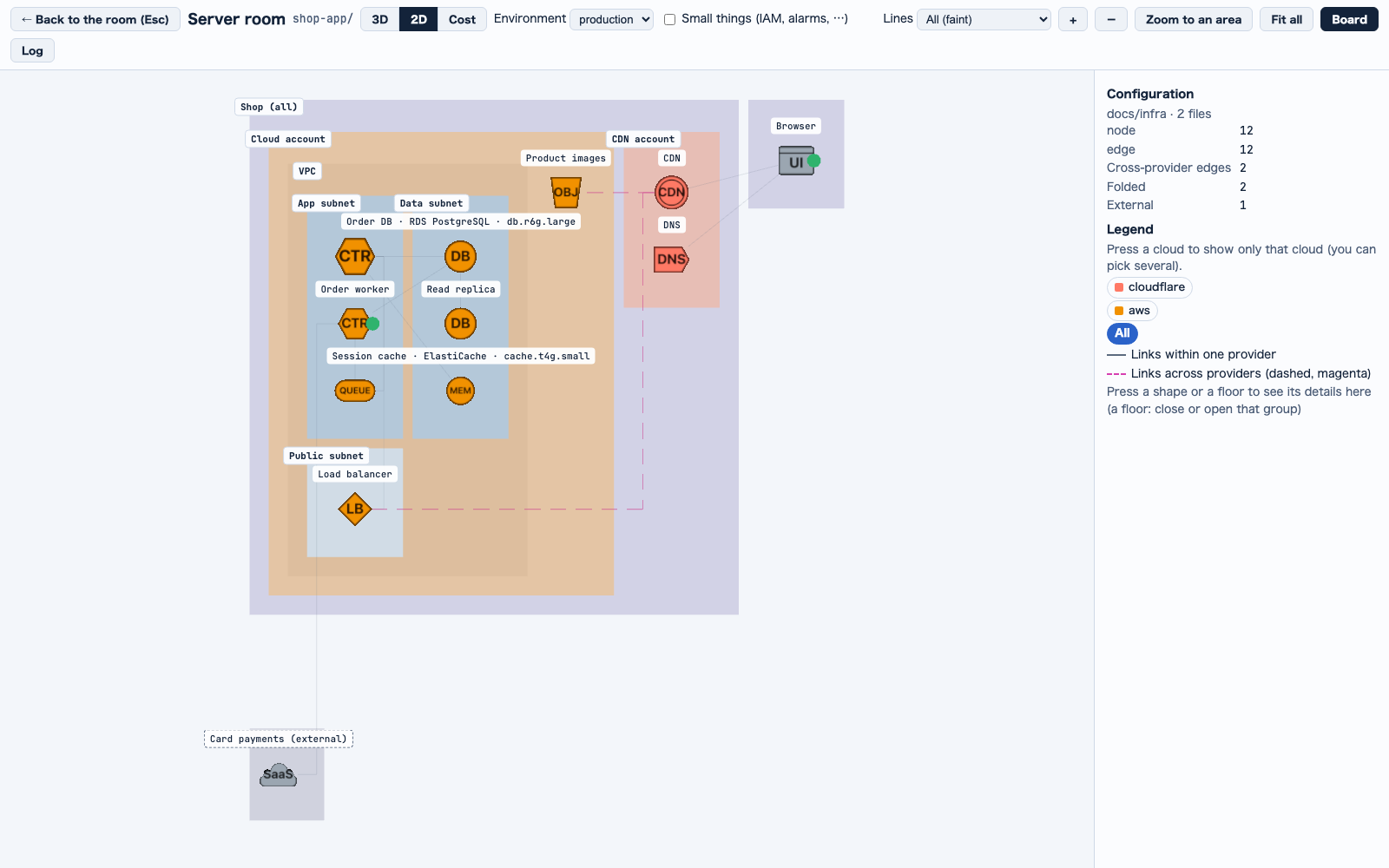 2D: the same room from straight above, a tile for each node.
1
In the server room, press 2D on the bar, between 3D and Cost (コスト). The room is built again from straight above and fitted to the page.2
Press 3D to go back. Pressing 3D or 2D while the cost view is shown closes the cost view and shows the room in that look.3
Nothing else to set: the look is remembered per project in this browser, so that room's server room opens in 2D next time until you press 3D.2D: the same room from straight above, a tile for each node.Tiles instead of shapesEach node is a flat tile in its cloud's colour, with an outline of its own and a short name for its kind: DB a database, MEM a cache, OBJ object storage, DISK block or file storage, PUB a notification topic, QUEUE a queue, STREAM a stream, LB a load balancer, CDN, DNS, WAF, API a gateway, λ a function, VM, CTR a container, K8s Kubernetes, UI a client, AUTH auth, KEY secrets, CRON a scheduler, MAIL mail, MON monitoring, SaaS an outside service. Anything else is a plain tile with no name. The kinds are those of the 3D's models up close.
The tiles are the same near and far: up close there are no models and no second set of shapes, and only the tags say more. A node's tag sits just above its tile, and an icon set in jui.config.json lies flat on the tile's corner.
Lines in 2DLines lie flat under the tiles, from the edge of one tile to the edge of the other. A line is straight when nothing is in the way; otherwise it bends at right angles around the tiles, taking the shortest route that crosses no other tile (an L, a run along the lane between two rows or columns, or a Z). When no such route is clear, it runs straight, beneath the tiles.
Pulled back, with Lines (線) on All (faint), the lines within one cloud are hidden once a node's cell is smaller than 18 px on the page, and only the lines across clouds stay; they come back past 22 px. Further out the groups close into boxes as in 3D, and the bundles run straight from box side to box side.
Moving in 2DThe view does not turn. Drag with the left or right button to move it, and use the wheel (or a middle-button drag) to zoom; the + and − buttons zoom in steps. On a touch screen one finger moves the view and two fingers pinch to zoom and move. Zoom to an area, Zoom to this and Fit all work as in 3D. Switching between 3D and 2D fits the whole room again.
Show lessA big model is easier to read with part of it hidden. Four controls decide what is drawn; each one rebuilds the 3D.
Environment (環境)With two or more environments, shows one. With one, the list cannot be changed.
Small things (IAM, alarms, …) (細かいもの(IAM・アラームなど))Folded by default. Tick it to draw them. A node is folded when its fold says so; left out, IAM roles, policies and alarms (security.iam, security.policy, monitoring.alarm) are folded and everything else is not.
Lines (線)• All (faint) (すべて(薄く)): every line, faint.
• Only lines that cross (跨ぐ線だけ): only the lines between clouds.
• Only the selected (選んだものだけ): only the lines of what you picked.
Whatever you choose, the lines of the picked node and of the node under the pointer are drawn strong.
Filter by cloudPress a cloud in the board's legend to show only that cloud. Several can be picked; All (全部) brings all back. While filtering, nodes with no cloud and groups left empty are hidden.
Select a node and read the board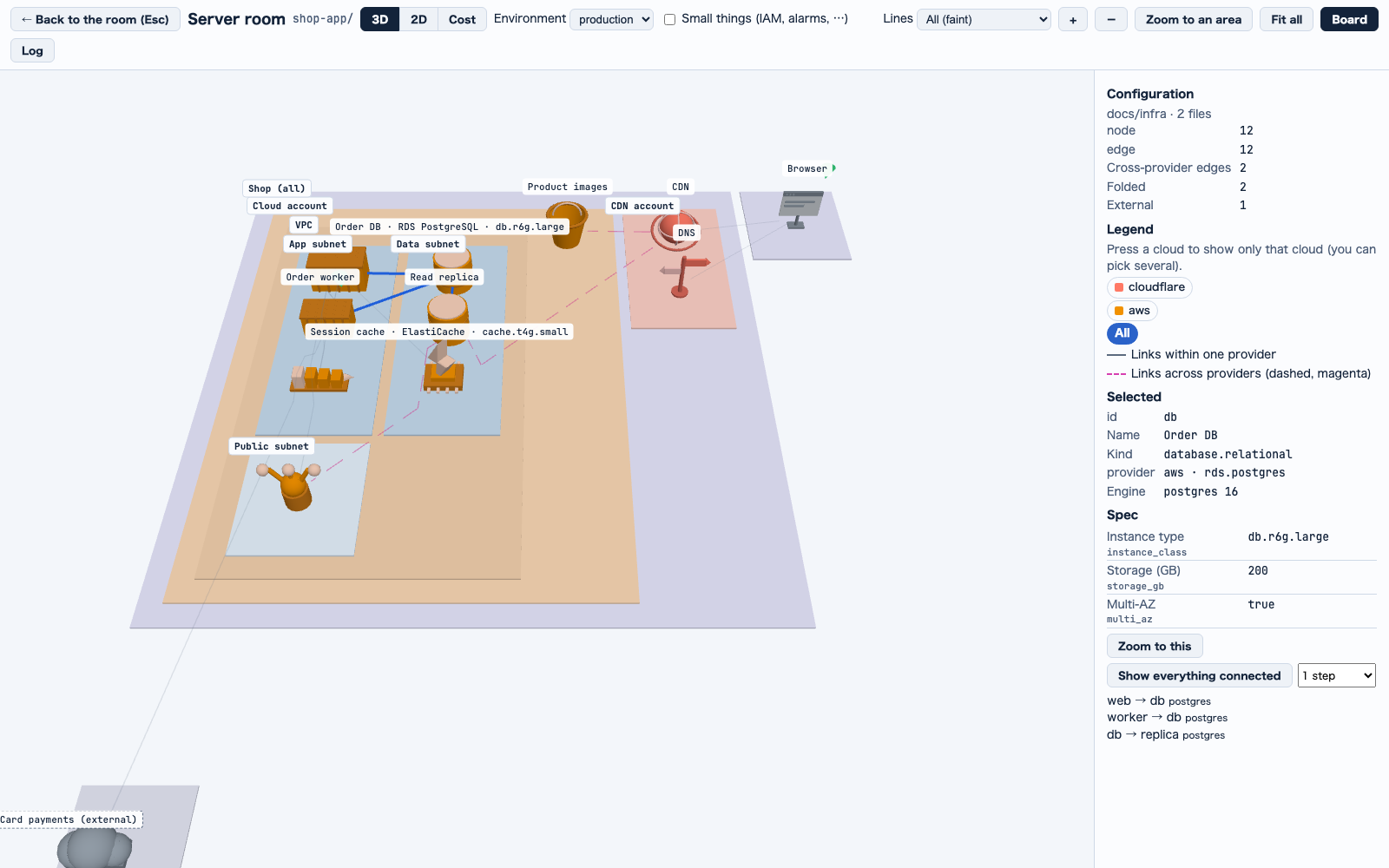 A node picked: the board shows what it is and its spec.
1
Zoom in until the floors show (not the boxes), then press a shape. A press that moves less than 5 px picks; a longer one turns the view.2
The board turns to Selected (選んだもの): id, name, kind, provider and service, count when more than one, and Engine (エンジン). Right under them come its flows, when it starts one; its lines are listed at the bottom, under the buttons.3
Read the Spec (スペック) table, if the node has a spec.4
Press Zoom to this (これに寄る) to move in on it, or Show everything connected (つながっている物を全部見せる) to see what it talks to.A node picked: the board shows what it is and its spec.What the board holdsFrom the top: the counts (nodes, edges, cross-provider edges, folded, external), the legend (press a cloud to filter), what you picked, and the problems found in the model (問題).
Nothing picked, it says to press a shape or a floor.
Engine and SpecA picked node lists its Engine (エンジン) and a Spec (スペック) table. Each key the IaC tables know is named in words, with the key itself in small type: instance_class reads Instance type (インスタンスの種類), memory_mb Memory (MB) (メモリ(MB)), multi_az Multi-AZ (マルチ AZ). Any other key shows as written. A value is shown as text, so markup in it stays text.
Show everything connectedBeside Zoom to this, with Steps to follow (たどる段): 1 step (1 段) or All the way (全部たどる). The node and every node joined to it by an edge, either way, are drawn as they are and the rest goes faint, and the camera moves until they fill the page. Press it again or Escape to put it all back, the camera too.
Pick a floorPress a floor to pick its group: the board shows its id, name, kind, provider and the nodes inside. Zoom to this (これに寄る) moves in on it, and ▲ Close this group (one box) (▲ この group を閉じる(箱 1 つに)) closes it into one box; ▼ Open this group to show its nodes (▼ この group を開いて、中の node を出す) opens it again.
Keep reading
jui viz`jui viz` shows the Claude Code sessions and subagents running on your machine (and the Codex sessions too) as rooms and robots in the browser. Start with the demo below, then pick the article for what you want to do./viz
Watching testsSeeing a JsonUI test run on iOS, Android or the web, and reading whether it passed./viz/tests
Infra modelThe files that describe your infrastructure, which the server room reads./viz/infra-model