
← jui vizTalk, prompts and notificationsSend a prompt to a session from its robot card, attach files, stop or clock out a session, read the robots' conversations, and get a browser notification when a session needs you.9 min read
Send a prompt to a sessionA robot's card can send its session a prompt, and end a session. A prompt only reaches a session that was started for it, so set that up first.Before you send: start the session with the channelA prompt reaches only a terminal session started with the jui-viz channel named. Pick one of the two ways:
Way 1: development channelsStart the session with the command below. Claude Code asks for a confirmation at every start.
shell
claude --dangerously-load-development-channels plugin:jui-viz@jsonuiWay 2: managed settingsAllow the plugin in the managed settings, then start with claude --channels plugin:jui-viz@jsonui. There is no warning.
On macOS the managed settings are /Library/Application Support/ClaudeCode/managed-settings.json, written with sudo:
{"channelsEnabled": true, "allowedChannelPlugins": [{"plugin": "jui-viz", "marketplace": "jsonui"}]}
That list replaces the default list of allowed channel plugins. An organisation account also needs channelsEnabled from its administrator.
shell
claude --channels plugin:jui-viz@jsonuiSessions that cannot receiveThe VS Code extension and the desktop app cannot receive prompts (their sessions cannot be started with those arguments), nor can subagents. For those sessions the field is disabled and says why. A VS Code or desktop app session with no channel gives that real reason, for example Nothing arrives: a VS Code extension session cannot be started with extra flags. Read from the page's code; not measured in a browser.
A Codex session needs none of the above: it receives prompts through its daemon (see Codex sessions).
Open the page at 127.0.0.1Sending works only on the page opened at http://127.0.0.1:<port>/ (not localhost), with this server's token. The log keeps the time, the session and the first 40 characters; the text is never exported.
Send1
Pick the robot and open its History (応答の履歴) tab.2
Type the prompt in the box under the history.3
Press Send… (送信…) or Ctrl/⌘+Enter. A confirmation names the robot and the session.4
Press Send to this session (このセッションへ送る). Only this button sends.Did it arrive?The card shows Sending (送信中), then Delivered (届いた) or Not arrived (届いていない). It finds out by reading the receiving session's own record.
When it reads Not arrived, the prompt was sent but never showed in the receiver's transcript. The card names the likely causes: the session was not started naming the channel, the organisation has no channelsEnabled, or the session closed.
A long prompt goes as a fileWhen a prompt's request would pass 8,192 bytes, the text goes as a file. The 8,192 bytes are the whole request, not the text alone: with nothing attached, plain English fits up to 8,113 bytes, a line break counts as 2 bytes, and a Japanese character as 3.
• Before you send, the line under the box reads Long text: goes as a file (<size>) when sent (長い文: 送る時にファイル(<size>)にして渡す), and the confirmation names prompt.md and its size.
• The server keeps the text as prompt.md with the attachments. The session receives its attached: line after one fixed line: The whole prompt is in the attached file (it was too long to send as text). Read all of it, in parts if it is long, then follow it as this prompt.
• The file counts as one of the 10 attachments, and the 20 MB file limit becomes the text's limit. With 10 attached already, or over 20 MB, the box stops and says why. If the prompt is refused, its file is taken back and the text stays in the box.
• Over 256 KB it still goes, and the line adds that the receiver may not read all of it.
• History (応答の履歴) shows your words, not the fixed line: Long prompt (<size>), given to the receiver as a file (長いプロンプト(<size>)。受け手にはファイルで渡した), the first 300 characters, and Show all (全文を見る), which shows up to 1 MB; the rest is in the file. The file goes an hour after the session ends, like any attachment, and History then says so. The log's 40 characters are yours too.
• The sorting factory's box for the robot sends the same way.
What the receiver does is jsonui-cli's measurement, on Claude Code 2.1.318 and with Claude Sonnet 5.5 as the receiver only: Read refuses a file over 256 KB in one go, so reading all of it cannot be promised. Auto mode asks for no permission for the Read; default and acceptEdits ask on each Read until you allow it from now on in the card. jsonui-cli has not measured the real channel route, Opus or Codex as the receiver.
Measured here: the page's own limit code run outside the browser, at 8,113 and 8,114 bytes, with line breaks and Japanese, with 9 and 10 attached, and at exactly 20 MB and one byte over. jsonui-cli's 17 tests of the file route pass. Not measured here: the box in a browser, and a real session reading the file.
What you type is keptText you have typed in the prompt box stays when the card redraws, and each robot has its own: open another robot's card and come back, and your unsent text is there again. It is cleared when you send it, and kept only while the page is open.
Hiding the note above the fieldThe --channels note above the field can be closed with ×. It then stays hidden on every card; Settings (設定) › Show the card notes again (カードの説明をまた出す) brings it back. The reason a field is disabled cannot be closed.
Attach files, and see pictures in the historyYou can attach files to a prompt: use the Attach… (添付…) button, drop files on the field, or paste an image.
LimitsUp to 20 MB each, 10 per prompt, and 100 files or 200 MB per session.
Where the files goThe server keeps attachments in uploads/<session>/ in jui viz's state folder (the folder is 0700), under random names it chooses, and deletes them an hour after the receiving session ends.
The prompt gets one line per file after its text: attached: <the stored path> (name, type, size). A Japanese line 添付: in a transcript is read too. The receiving session opens that path with its own Read.
Attaching does not grant a permissionjui viz does not widen the receiving session's permissions. The file is outside its working folder, so unless your own settings allow the Read, a permission prompt appears. jsonui-cli measured on Claude Code 2.1.318 that auto mode does not ask for this Read, and that default and acceptEdits do.
Attached images in the historyAn image attachment (PNG, JPEG, GIF or WebP) in History (応答の履歴) shows as a thumbnail that enlarges like the history's pictures; one that has gone reads Gone (消えました). Other attachments stay marks.
A picture in a prompt you sent while the session was working shows too, before its words. Measured here by running the shipped history code on one made-up record: it gives the picture row, and its picture route answers 200. The thumbnail in a browser is jsonui-cli's check and is not measured here.
Images Claude sends youAn image Claude sends with SendUserFile (PNG, JPEG, GIF or WebP, up to 15 MB each) is a thumbnail in History (応答の履歴) too, and enlarges when pressed; ← and → step through that history's images. The SendUserFile row shows open: the thumbnails, then the caption, then any other files as 📎 and a name.
The server reads only a regular file at the path in the record. A file whose first bytes are not that kind of image reads A format that cannot be shown (表示できない形式), one too large Too large to show (大きすぎて表示しない), one gone Gone (消えました), and one that cannot be read Cannot read the image (画像を読めない). SVG is never a thumbnail.
Files on closed rowsA tool row shows its pictures and files even closed: a small thumbnail of the first picture with N images (画像 N) (press it for the large view) and N files (ファイル N).
A file that is not a picture (a SendUserFile file, or a page attachment) is a 📎 button that shows the file in Finder. This is macOS only, and a file that is gone reads (gone) / (もう無い) and cannot be pressed. The head of a Read, Edit, Write or NotebookEdit row also shows the file's name as a Finder link, with the row closed.
Pictures survive the file being movedThe server copies each picture of a SendUserFile call when the call is made, into sent/ in jui viz's state folder (0700; a picture of 15 MB at most; 512 MB and 30 days in all, the oldest going first). The history shows that copy, so the picture still shows after its file is moved or deleted.
One that could not be copied says why once its file is gone, such as Gone (no copy was taken when it was sent: over 15 MB) (消えました(送られた時に写しを取れなかった: 15 MB を超えていた)). Files that are not pictures, the file tools' links and the page's own attachments are still read where they are.
Stop a session's turnStop (停止) sits beside Send… (送信…) on a main session's card; a subagent's card has none. It needs the plugin. On a Codex session it needs no plugin and stops the turn at once (see Codex sessions).
1
Press Stop (停止). The card reads Stop asked. It stops once the tool now running has finished… (停止を依頼しました。今の道具が終わったところで止まります…).2
Changed your mind? Press Take back the stop (停止を取り消す) while it waits.3
When it has stopped the card reads Stopped at <time> (<time> に停止しました). If the work ended first, the log says The work ended before it could be stopped (停止の前に作業が終わりました).When it actually stopsIt stops the session's turn once the tool now running has finished, not in the middle of writing text or of a long Bash: the call already handed out still runs, and the turn ends after it. The stop holds for the rest of that turn and goes with your next prompt.
What it needsStop needs neither the channel nor the relay, only the plugin's hooks.
Installed the hooks with `jui viz hooks install`? Run it againThe UserPromptSubmit, PreToolUse and PostToolUse hooks carry --stop. The 18/18 events that `jui viz hooks status` reads do not show it; only its --json does, with stop true.
shell
jui viz hooks installjui viz hooks status --jsonClock a session out
1
On the robot's card, press Clock out… (退勤…).2
Confirm. The server sends that session's claude one SIGTERM (a background session: it runs claude stop once, with no signal), and the robot walks out of the door.What can be clocked outOnly sessions started in a terminal can be ended this way, after checking the process again just before. That includes a background session (below). Never a subagent, jui viz itself, the VS Code extension or the desktop app.
A Codex session's Clock out sends no signal: jui viz stops following its thread (see Codex sessions).
A background sessionA background session is one the claude daemon runs, started by claude --bg or similar. Its card has a background (裏のセッション) mark, which tells it from a terminal's session of the same name, and the dialog's Client (クライアント) row says Background session (claude --bg).
Clock out runs claude stop <job id> once and sends no signal: jsonui-cli measured on Claude Code 2.1.317 that a session ended by SIGTERM is started again by the daemon about 10 s later, every time. Work in progress stops there. The conversation is kept, and claude attach <job id> opens it again.
• claude stop can answer before the process has gone, so the session counts as ended only when the process has gone. Within 6 s the event log reads Clock-out (claude stop) → <robot> (pid n) ended. After that the page says it did not end, and nothing more is sent.
• If claude stop fails, or claude is not on the server's PATH, the clock-out is refused with what it said, for example claude stop <job id>: No job matching. No signal is sent instead.
• An entry without a whole job id is refused, because claude stop matches prefixes. A background entry from the VS Code extension or the desktop app is refused like any other from those clients.
Measured: the shipped checks and clock-out code, with ps and claude stop replaced by stand-ins, in each case above; no signal was sent in any of them. Not measured here: a real background session, and the mark and the dialog in a browser.
A session that ended without saying soWhen a claude is killed without its SessionEnd (closed with its terminal, say), the server ends it once it is gone both from `claude agents --json` and from every ~/.claude/sessions entry; one of the two alone ends nothing, and neither does a list that could not be read. The log reads Clock out (process gone). It needs the server's reading of `claude agents --json`, which --no-agents-poll turns off.
Clock out on such a session, whose entry and process are both gone, takes it out without sending anything. A background session is the exception: with its entry gone the daemon may still mean to start it again, so claude stop runs on the job id the server last saw.
Read the robots' talkTalk (トーク), the speech-bubble icon at the top of a robot card, shows the messages that robot sent and received with SendMessage, as a chat like LINE. Main robots and subagent robots both have it.It is read-only: you cannot type in it, and it raises no notification. New messages show as the unread count on the icon and in the list's order. The demo has example talks too. A message one session sends another with `jui viz message`, Claude Code or Codex, shows here too (see Messages between sessions).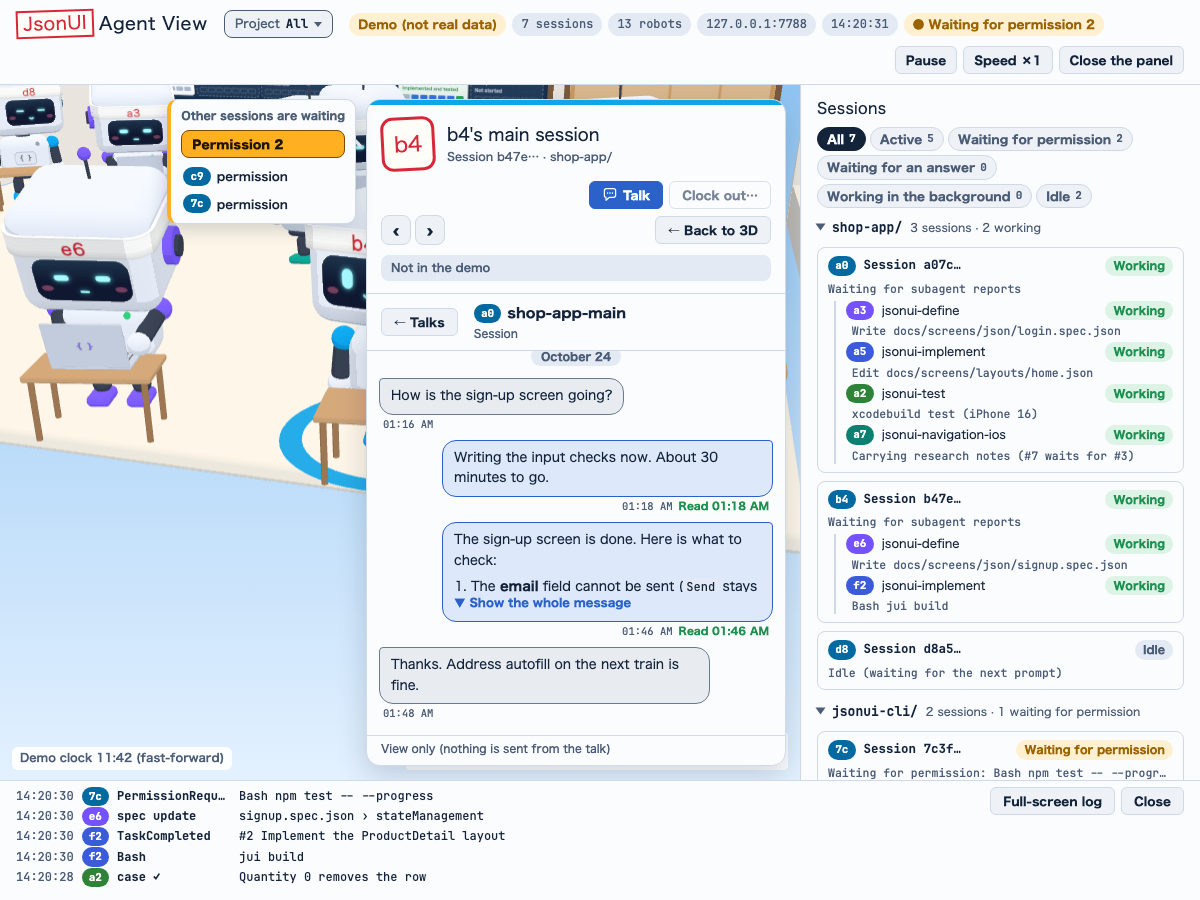 A conversation in Talk (demo data).
The listOne row per peer, newest last message first, with the peer's tag, its name, the time, the start of the last message (Me: (自分:) when you sent it) and the unread count.
Talks and Robots tabsThe list has two tabs. Talks (トーク履歴) is the list above. Robots (ロボット一覧) lists the robots on the page now that have no talk with this robot, room by room (a robot that is leaving and the card's own robot are not listed).
A row whose robot is on the page has Go to the robot (ロボットへ移る): the talk closes and the robot is picked as in the 3D (its room, its card, the camera on it), in another project too. Tab moves between the two tabs.
A conversationWhat this robot sent is a blue bubble on the right, what it received a bubble on the left, with a divider at each new day. The received bubble is a pale grey with a grey edge in the light theme, and navy with white text and a violet edge in the dark theme.
A sent message reads Read (既読), Delivered (届いた), Sent (送信済み) or Not delivered (届かなかった); a message of `jui viz message` whose arrival could not be confirmed reads Delivery unconfirmed (到達未確認), on both sides. A long message is folded to three lines; ▼ Show the whole message (▼ 全文を表示) opens it. Press the peer's name at the top to go to that robot's card.
What is includedSendMessage between Claude Code sessions on this machine, and between a subagent and its parent. The prompt that started a subagent and its final answer are not included.
A peer in the cloud, on another machine, or whose name could not be resolved shows as Someone outside this machine (この機械の外の相手) and cannot be opened. Only this machine's transcripts are read; the other machine is never.
A SendMessage that goes through Remote Control's bridge (addressed bridge:session_…) is one message: the receiver's copy is matched to the send, so it shows once and takes Read (既読), and the receiver's talk names the sending session when it is on this machine. This is jsonui-cli's measurement; it was not sent through Remote Control here.
When a talk goesAn hour after either session ends, the talk leaves the list; it stays if the session comes back within the hour. A peer outside this machine leaves an hour after its last message, and comes back with a new one.
Where it is keptAn index in talk.db in jui viz's state folder. The transcripts are the source, so deleting it loses what was marked read, and the messages sent with `jui viz message`, which have no transcript to be read again from. Message text never goes into the log, a snapshot or an export.
Notifications and the question windowThe page can notify you when a main session finishes its turn, waits for a permission, or waits for a question.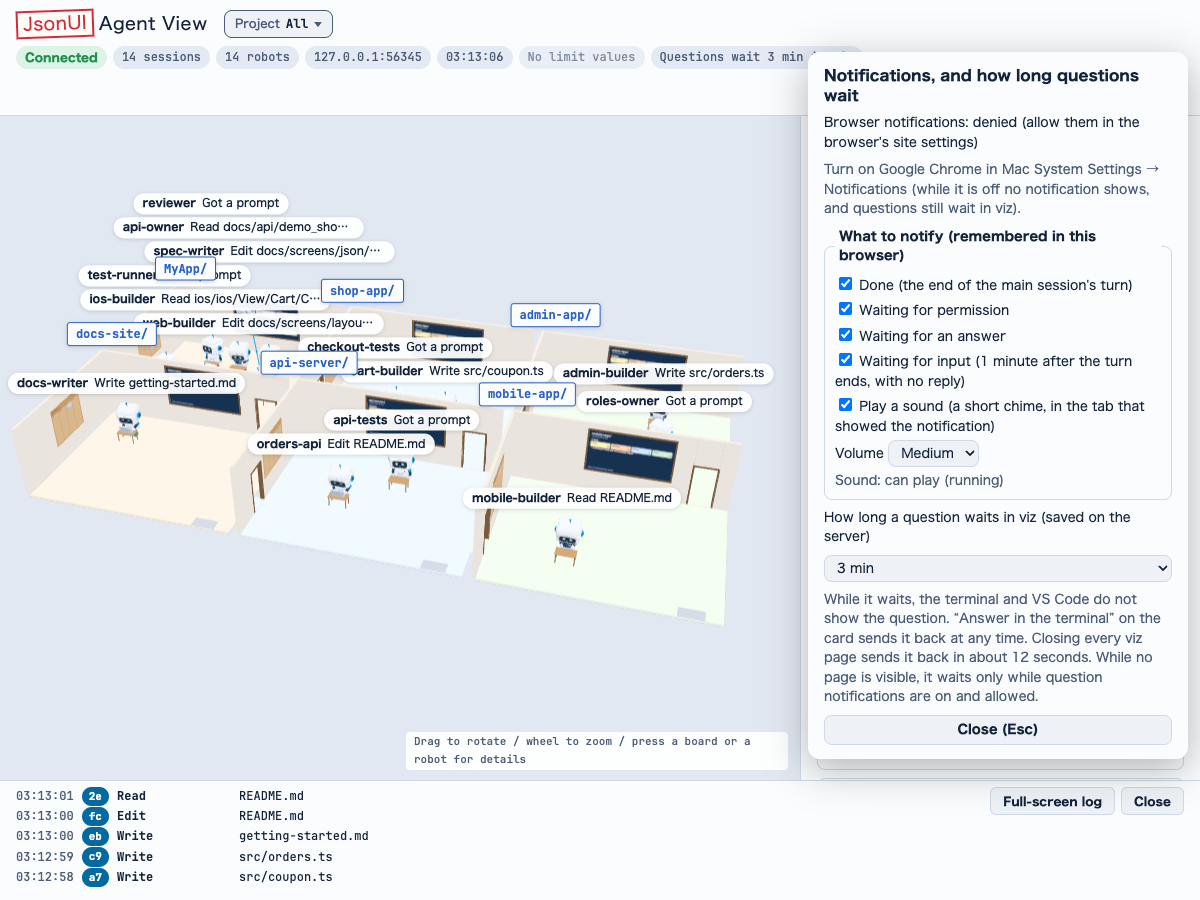 The Notifications panel in the header.
1
Open Notifications (通知) in the header.2
Press Allow browser notifications (ブラウザの通知を許可する). The browser asks only then.3
Pick the kinds under What to notify (通知する出来事): Done, Waiting for permission, Waiting for an answer, Waiting for input. This browser remembers them.4
On a Mac, turn on System Settings → Notifications → Google Chrome (or your browser), or nothing appears.The Notifications panel in the header.What a notification says• Done: <name> is done, with (stopped by a failure) when the turn failed.
• Waiting for permission: <name> is waiting for permission: <tool>.
• A question: <name> is asking a question, followed by how to answer (in viz or the terminal, when it goes back to the terminal, or that it waits until answered in viz).
• Waiting for input: <name> is waiting for your reply.
Pressing a notification opens its card or board.
How it worksIt uses the browser's Notification API only, while a jui viz page is open: no service worker, no push service, nothing leaves the machine. It stays quiet for what you are already looking at and for anything older than 2 minutes.
Waiting for inputWaiting for input (入力待ち) can be picked too, on by default. About a minute after a reply ends with no answer from you, Claude Code tells its hooks so; jui viz then notifies and chimes once for that main session.
It stays quiet if, after the turn ended, you pressed its done notification or opened that robot's card. Opening it in another tab does not count.
SoundA short chime plays with a notification: two falling notes for done, two rising notes for a permission or a question; no sound file. Play a sound (音を鳴らす) (on by default) and Volume (Low / Medium / High, Medium by default; 音量 小 / 中 / 大 in Japanese) in the same panel change it.
It plays only with a notification, so not without notification permission. It plays in a tab that can make sound: a browser lets a page play sound only after a click or a key press there, so a silent tab hands it to another one, and a front tab still rings with an old tab left open. The panel shows Sound: <state> (音の状態).
How long a question waits in vizThe choicesThe same panel sets How long a question waits in viz (質問を viz で待つ時間), saved by the server: 20 s, 1 min, 3 min (the default), 10 min, 30 min or Until answered (24 hours at most).
While a question waits in jui viz, the terminal and VS Code do not show it. Answer in the terminal (ターミナルで答える) on the card hands it back at any time, and it goes back about 12 seconds after the last jui viz page closes.
A page in the backgroundA page you are not looking at keeps a question waiting only while its question notifications are on and allowed. Permission prompts are not covered by this: they still wait only while a page is showing.
Waits over 5 minutes need the current pluginA wait over 5 minutes works with the current plugin; after updating the plugin, restart your Claude Code sessions. With an older plugin nothing breaks, but the question goes back to the terminal at 5 minutes. If you installed with `jui viz hooks install`, run it again: an old 600-second hook makes `jui viz hooks status` and `jui viz doctor` report NG.
Checks and earlier versions`jui viz hooks status` and `jui viz doctor` also read the timeout of the enabled plugin's question hook. When it would cut a wait you can pick (with a 600-second timeout: 10 min, 30 min and Until answered), they report NG with the plugin's name and version, and suggest updating it in /plugin and restarting the sessions.
Keep reading
jui viz`jui viz` shows the Claude Code sessions and subagents running on your machine (and the Codex sessions too) as rooms and robots in the browser. Start with the demo below, then pick the article for what you want to do./viz
Panels, cards and boardsThe side panel, a robot's card and the boards that list specs and tasks./viz/panels
Messages between sessions`jui viz message` sends a message from one session to another, Claude Code and Codex alike, and both robots' Talk shows it./viz/messages