
← jui vizPanels, cards and boardsWhat the right panel, a robot's card, the spec and task boards, the log and the header show, and how to move around them.9 min read
Panels, cards and the camera: the right panelThe panel on the right lists the sessions, how far each spec has got, the test runs and the tasks.
Jump to what is waitingPress the header chip Questions N (質問 N) or Waiting for permission N (許可待ち N). The task board opens with the questions and the permission requests at the top, oldest first.
The chips count every project. While the page is narrowed to one project, they add how many are outside it: Waiting for permission 3 (other projects: 1) (許可待ち 3(他のプロジェクト 1)), and the same for questions. This is read from the page's code and not measured in a browser here.
Header buttons and coming back to the 3DThe header's Notifications (通知) and Close the panel (パネルを閉じる) stay at the right edge even when the header wraps.
Opening the data server, the price table or a board from an open card no longer leaves the 3D frozen when you come back.
Pressed controls are easy to tellEvery pressed or selected control on the page can be told from its off look by a contrast of 3:1 or more, in light and dark. That covers tabs, switches, 3D / Cost (コスト), the server room's Board (ボード) and Log (ログ), the legend's clouds and the rest.
The robot cardPick a robot to open its card. The card has two tabs, Now (今の様子) and History (応答の履歴).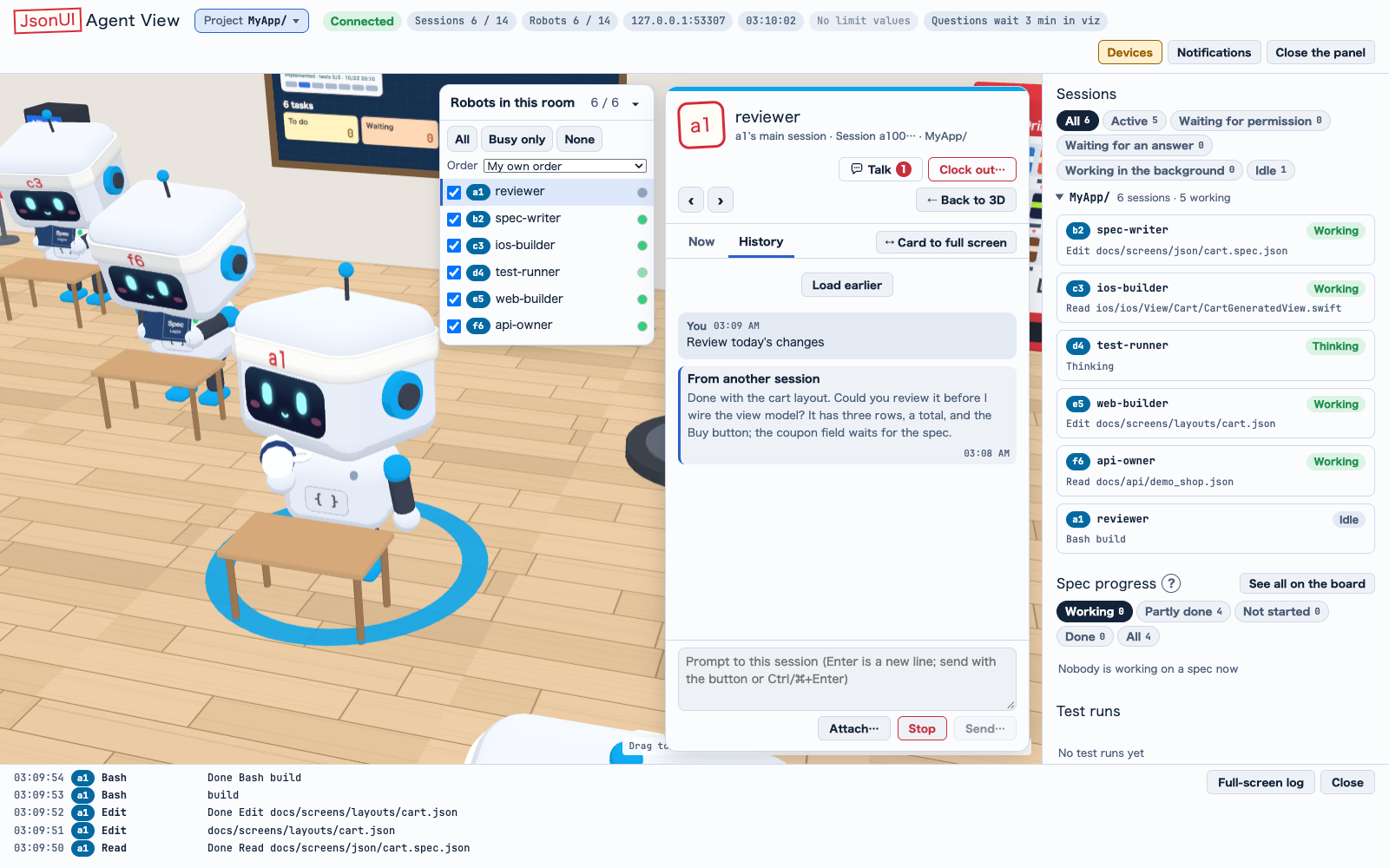 A robot card on the History tab.The two tabs
 Other robots' waits beside an open card.Reading comfortably
A robot card on the History tab.The two tabsNow (今の様子)What the robot is doing now, with a Test runs (テスト実行) part for the test runs that robot started: three at most, each with its platform, state, counts, and failed cases by name.
History (応答の履歴)The robot's latest turns: your instructions, messages from other sessions (folded), tool calls folded to their description with the input and output inside, and Claude's answers.
The history is read from the session's transcript only while the tab is open, up to 40 items. It is never written to the log, a snapshot or an export.
A line of the transcript over 1 MB is read too, up to 16 MB: a prompt with pasted pictures, or a long tool output. A tool output longer than that says so on its call ([output too large to read (n MB)]). A queued message with no sender (a task notification, say) shows as Text the harness added (ハーネスが入れた文), at the time it came. A Codex session's history comes from its own files (see Codex sessions).
Reading further backLoad earlier (もっと前を読む) at the top of the history reads the 40 before, as often as you press it. What it read stays above the newest part until you pick another robot or reload the page.
Calls stopped by auto modeA tool call that auto mode stopped is marked Denied (止められた) on its own row, with the reason inside the row, however far back it is. The stopped call's card goes a minute after it is settled; the row stays.
Times and messages that arrive mid-workA tool row shows its call time at the right end. Messages that arrive while the session works (from other sessions, prompts sent from viz, your own input) appear too, one row each, at the time they arrived.
Moving between robotsPrevious and next robotWith a card open, ← and → (or the ‹ › buttons) go to the previous or next robot in view, in room order and then by number, keeping the tab you were on.
This works even with focus on a tab (except in a text field or while composing), and Tab moves between the tabs.
In the live 3D view, the steps follow each room's robot list (Robots in this room (この部屋のロボット)): room by room, each in the order the list shows, skipping the robots the list hides, a main session's subagents right after it. The demo and a page without the 3D keep room order, then numbers.
Switching projectsSwitching projects with a robot picked opens the robot you last picked in that project, if it is still in the room. Otherwise the room is shown; All (すべて) picks none.
This is kept in the page only: a reload forgets it, and closing the card with × or Escape forgets that project's pick.
The robot remembered is the one last on the card, however it got there: a click, ← → or ‹ ›, or a name in the history.
The card follows its robotWhen the robot whose card is open walks to a room out of view (the one-room view shows another room, or the room is on another floor), the view follows it: its room is shown, the card stays open, the camera goes to the robot, and a toast says so.
Within 3 seconds of switching the view by hand nothing moves; instead the card says where the robot went, with a button to go there. If its room closes, the card stays open and says so once.
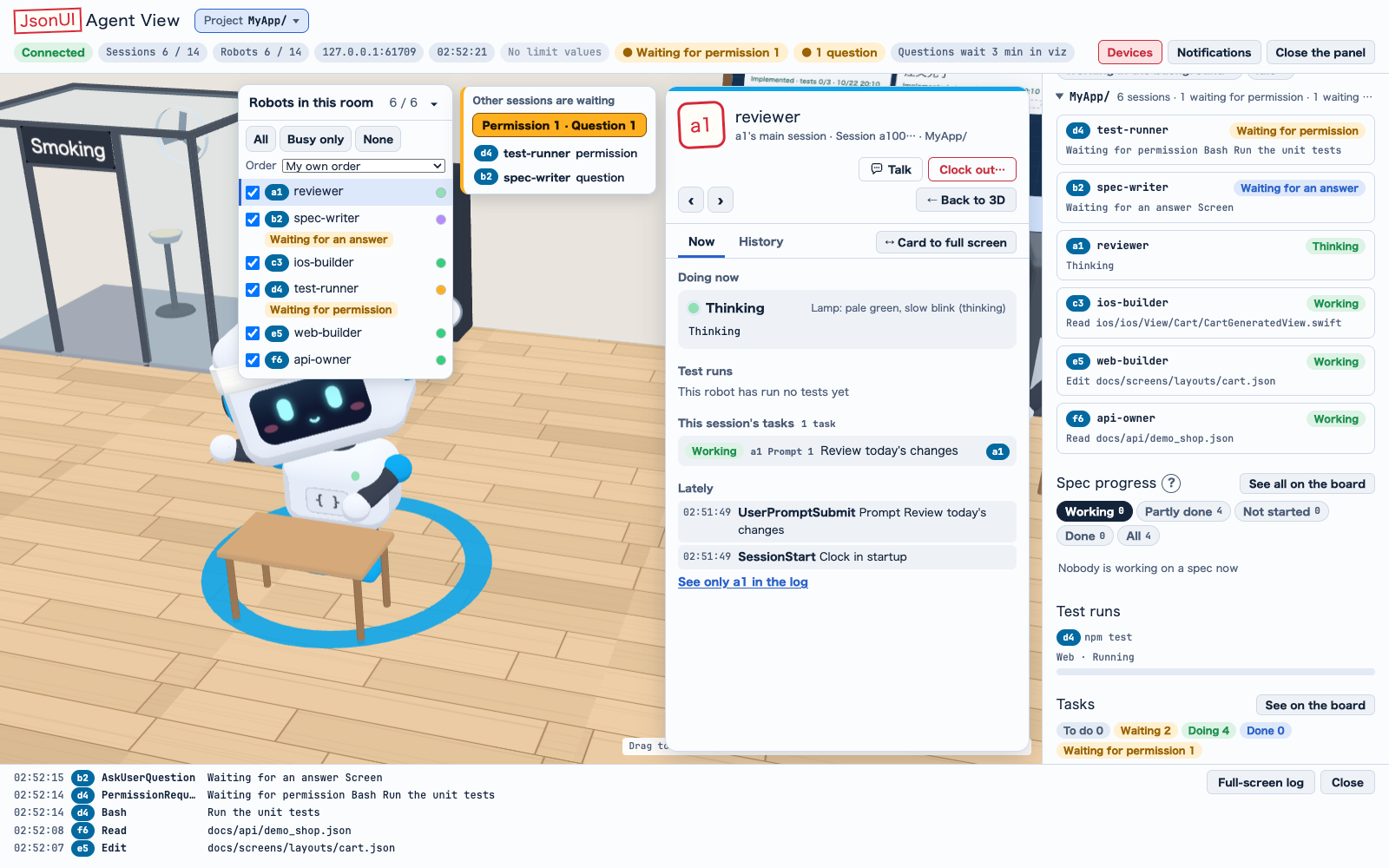
Other robots' waitsWaits beside the open cardAn open card covers the header's chips and the other robots' bubbles. So while it is open, a small block, Sessions waiting (待っているセッション), sits just outside the card at its top-left corner. It sums up what the other robots wait on, such as Permission 2 · Question 1 · Stopped call 1, and lists each robot with its mark, its name if it has one, and what it waits on: six robots, then N more. The open robot's own permission requests are listed too; its own question and stopped call are left out, as they are in the card.
Press a robot's row and its waits open in a pane under the block, where you answer them: a question's choices, a free answer and send; a permission's tool, what it asks, allow and deny; a stopped call. The card stays and the camera does not move. A wait answered anywhere goes from every place at once, the row and the pane with it. The row again, the pane's × or Esc closes it. Press the sum to open the task board's waiting strips, as the header's chips do.
Every way from a wait to the board or the panel (the header's chips, the block's sum, the pane's See on the board (ボードで見る), a notification, a robot's bubble) first chooses the project the waits are in: that project when they are in one, All (すべて) when in two or more. A new wait makes the block move once (not with reduced motion).
Where the card has the page's width (900 px wide or narrower, or the card at full screen) there is no room beside it: the card's head row shows a Waiting N (待ち N) badge instead. It opens the same pane under the badge, the robots listed first, with See on the board (ボードで見る) for the board. The room's robot list keeps clear: it moves left off the open card and off the block, and goes below the block where the 3D has no room to its left.
Other robots' waits beside an open card.Reading comfortablyYour place is keptHistory (応答の履歴) keeps your place when it refreshes. It follows new answers only when you are at the bottom, and shows New responses ↓ (新しい応答 ↓) otherwise.
Widening the card, images and tablesThe card can be widened; one robot stays visible at the left, and Escape goes back. History (応答の履歴) shows images as thumbnails you can enlarge, and scrolls wide tables sideways.
Now (今の様子) widens too, with one width for both tabs, and the camera does not shake with the robot while widened.
Messages between sessionsA message from another session reads sender, text, time, folded to three lines; press the text to fold it again. A SendMessage row names its recipient; press the name to switch to that robot.
Full text of a cut-off lineA line cut short shows its full text on hover or focus, on the card, in the panel and in the log strip.
That full text appears over the 3D view and stays 0.7 seconds after the pointer leaves, so you can move onto it and select the text.
For a line on the card or in the panel, it appears just left of that card (or panel), level with the line. For the log strip and the bottom sheet of a narrow screen it stays at the left of the 3D view.
TalkTalk (トーク) at the top of the card shows that robot's SendMessage conversations. See Talk in the article on talk, prompts and notifications.
Zooming inPick a robot or a board to fly to it.
1
Pick a robot or a board: the camera flies to it.2
Drag to turn around it.3
Use the wheel or a pinch to come closer or go back.Nothing in the wayThe camera comes in from the side with the least in the way, and walls or desks still in the way turn see-through until you leave.
Real timeWalking and animation keep real time on a busy machine, and a tab you come back to shows the robots where they are by now.
Boards and the logSpec boardFor each spec, the board shows how far its seven sections are filled in (overview, structure, state, data flow, actions, transitions, branches), and how far implementation and tests have got. Open one to read the spec as a sheet; the structure is drawn from the Layout file the spec points to.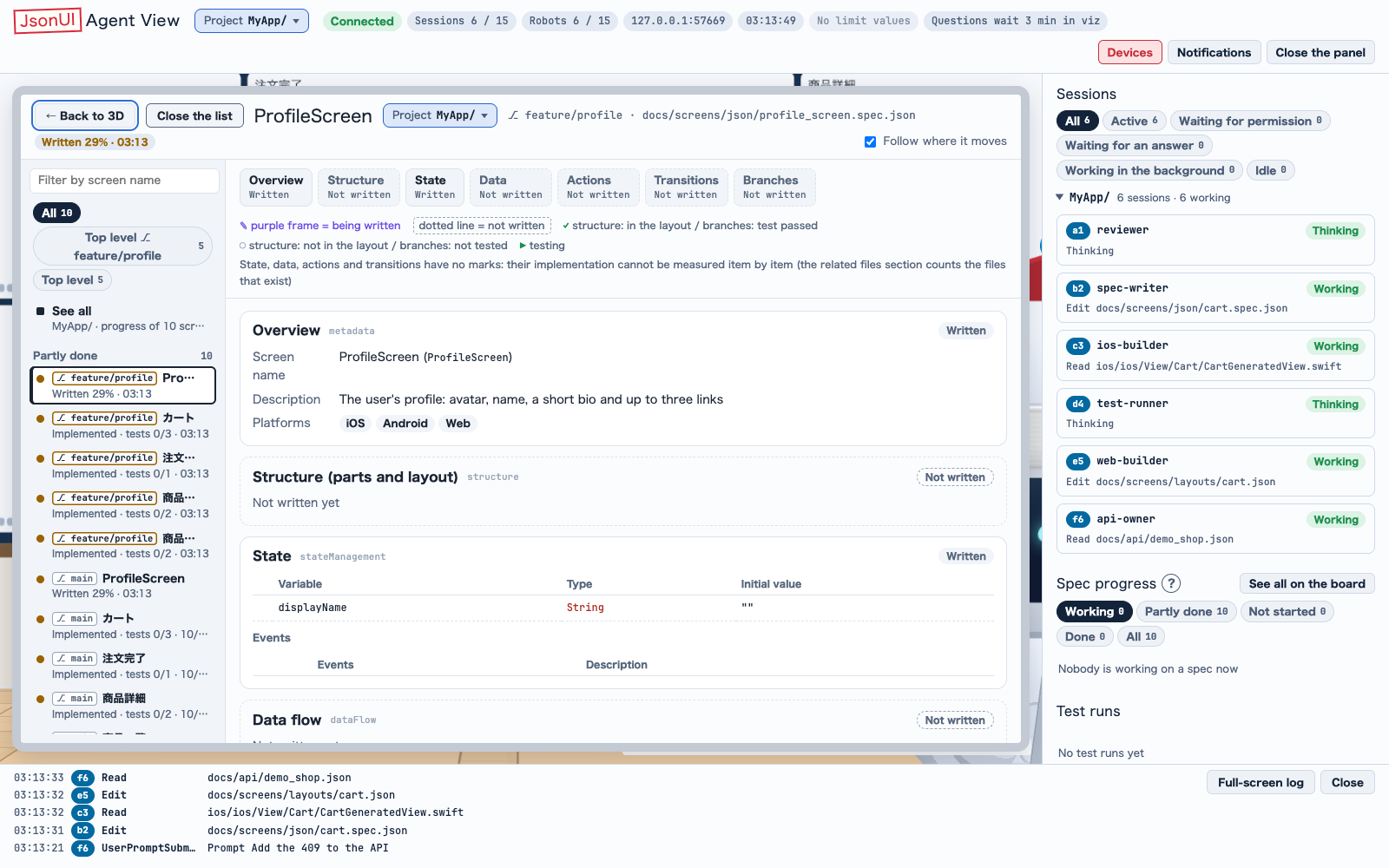 A spec in the room and in a worktree, one row each.
 The task board with a question waiting in the folded strips.
What a spec's card saysA spec's card reads how much is written, whether its layout exists, how many of its related files exist, and how many of its tests pass. A mark appears only where it was measured (the structure, from the layout; the branches, from the tests).
These are a guide only: `jui verify` is the real check.
A spec is Done (完了) only when its implementation is done and, with a test file of its own and no failed case, the number of passed cases reaches the larger of its test cases and its branches. So a spec with fewer test cases than branches stays Partly done (途中): with 3 test cases and 8 branches, its tests read 3/8, not 3/3. The Branches section, the spec's status line and the lists count against that same number. Where results are counted is in Watching tests.
Several apps in one roomThe board reads every JsonUI app in the room, meaning `jui.config.json` files up to three folders below it, and lets you pick one app or all of them.
Specs a session is writing in a worktreeWhen a session works in a git worktree of the room's repository, the board shows that worktree's specs beside the room's own, before anything is merged and pulled. Each such worktree is an app of its own, named app@branch (the app filter reads app ⎇ branch).
Every row then carries a ⎇ branch tag before its name, in the panel's list, the whiteboard's list and the overview's cards. A worktree's tag has an amber edge and its tooltip names the worktree's folder (A spec in progress in a worktree (…)); the room's own rows show the room's branch (A spec in the room's checkout). A spec in both checkouts is two rows, and an open sheet's head shows ⎇ branch before the file. A robot writing a spec in the worktree marks that row, as in the room.
Only a worktree that a session not yet ended is working in is shown, and only when it has jui.config.json at the same place as the room's app. A worktree no session works in is not shown, and one that is left or removed takes its rows with it. The board looks again when the sessions' folders change and every 5 seconds. A worktree with no branch checked out is named by its commit's first 8 characters. jui viz finds these worktrees by reading git's files. It never writes git, and runs it for a worktree only when you press Diff against base (ベースとの差分), below.
A session whose folder is the room itself also shows a worktree's rows when its tools name the worktree by an absolute path (Read, Edit, Write, Grep, Glob, or a jui-tools project_dir). That worktree counts for 30 minutes after the last call that named it, while the session lives. A relative path or a Bash command names none.
This includes a worktree inside the room, such as the worktrees folder an agent tool keeps under the repository (<repository>/.claude/worktrees/<name>): it is shown by its branch like any other. The room's own search for apps does not go into a linked worktree (it does go into a submodule).
A spec in the room and in a worktree, one row each.Diff against base (ベースとの差分): a worktree's spec beside where it startedOpen a worktree's spec and the whiteboard's head has a Diff against base (ベースとの差分) button. It opens a full-screen view with the base on the left and the worktree's spec on the right. The base is the commit where the worktree's branch left the room's checkout (the merge-base of the two HEADs). The right side is the file the board reads now, uncommitted edits included.
Both sides are read the way the spec sheet reads them; the left takes its texts file and its Layout from the same commit. Rows are paired section by section by their key: a component's id, a variable's, an event's or a method's name, an API's method and path, an action, a transition, a branch. Each row is Same (同じ), Added (足した), Removed (消した) or Changed (書き換えた). On a changed row only the part that changed is marked, on both sides. The head counts them as +added −removed ~changed, and Show differences only (差だけ見せる) hides the rows that are the same. Close (閉じる) or Esc goes back.
The rows that are the same fold, as a code review folds a diff. In a section that changed, the 3 rows on each side of a change are shown, and a longer run of same rows between them is one line, ⋯ n unchanged rows. A run of 20 rows or fewer opens with Show n rows; a longer one opens 20 rows at a time from the change above (↓ 20 more below) or from the change below (↑ 20 more above), or all at once (All (n rows)). A section with no change starts folded to its head, No changes · n rows. Pressing a section's head folds or opens it. What you opened stays open until you close the view; it starts folded the next time. Show differences only shows the changed rows alone, so nothing folds there.
The same button works on a worktree's whole list: choose the worktree's app in the overview and press it. Every card gets a mark against the base: +n −n ~n, New (新規) or No change (差なし). The specs the worktree deleted appear as faint cards under Specs deleted in this worktree (このワークツリーで消したスペック); each opens the same view, with every row on the left removed. Press the button again (Hide the diff marks / 差分の印を消す) to take the marks off. A list compares up to 300 specs and lists the rest without a mark.
The button is there only for a worktree's spec or list, and only with a running server; the exported demo has no worktrees. git runs only when you press it, read-only (merge-base, show and ls-tree), and gives up after 3 seconds. When the base cannot be read, the view says why, for example when the histories do not meet or git does not answer in time.
On the live page, the sessions working in that worktree stand by name to the right of the button: those whose working folder is in it, or whose tools touched it in the last 30 minutes. Two are named, then +n more; the tooltip says how they were found. Who made the worktree is recorded nowhere, so these are who works there now.
Latest firstThe spec lists put the spec that moved on last first: its own write, its Layout's, or its newest test result. Each spec shows when that was (12:34, Yesterday 12:34 (昨日 12:34), or the date and time); hover for the full time and what moved it on.
The ? buttonThe explanation and the legend open from the ? beside the heading, in the panel and on the board.
The spec sheetThe data flow is drawn as a Mermaid diagram, the same graph as the generated spec page. Transitions are coloured by kind (push, sheet / modal, replace, back, external, none; To a screen (画面へ) when no kind is written but a screen is named), and state types by type.
The structure is shown nested: indented with tree lines per level, and each child's box inside its parent's in the phone-frame drawing.
The sheet is one column that never runs off the side. Events and actions are each a table (actions get a destination column only when the spec writes one), and a branch's when / then shows as formatted JSON when the spec writes it as an object or an array (folded past 12 lines).
The whiteboard's side list brings the open spec into view however it was opened, and prose a spec takes from a texts file is drawn as Markdown (text only; http(s) links open in a new tab).
A structure row read from the Layout shows the component's type (View, Image …) in a code typeface beside its translated name (Container …), and the Japanese page says レイアウト everywhere.
A diagram Mermaid cannot read (a syntax error, too many edges, an empty text) says so in its own box: Could not draw the diagram (see the boxes below), with Mermaid's reason in one line under it. Nothing is left at the bottom of the page. A text that failed is not tried again while the page stays open.
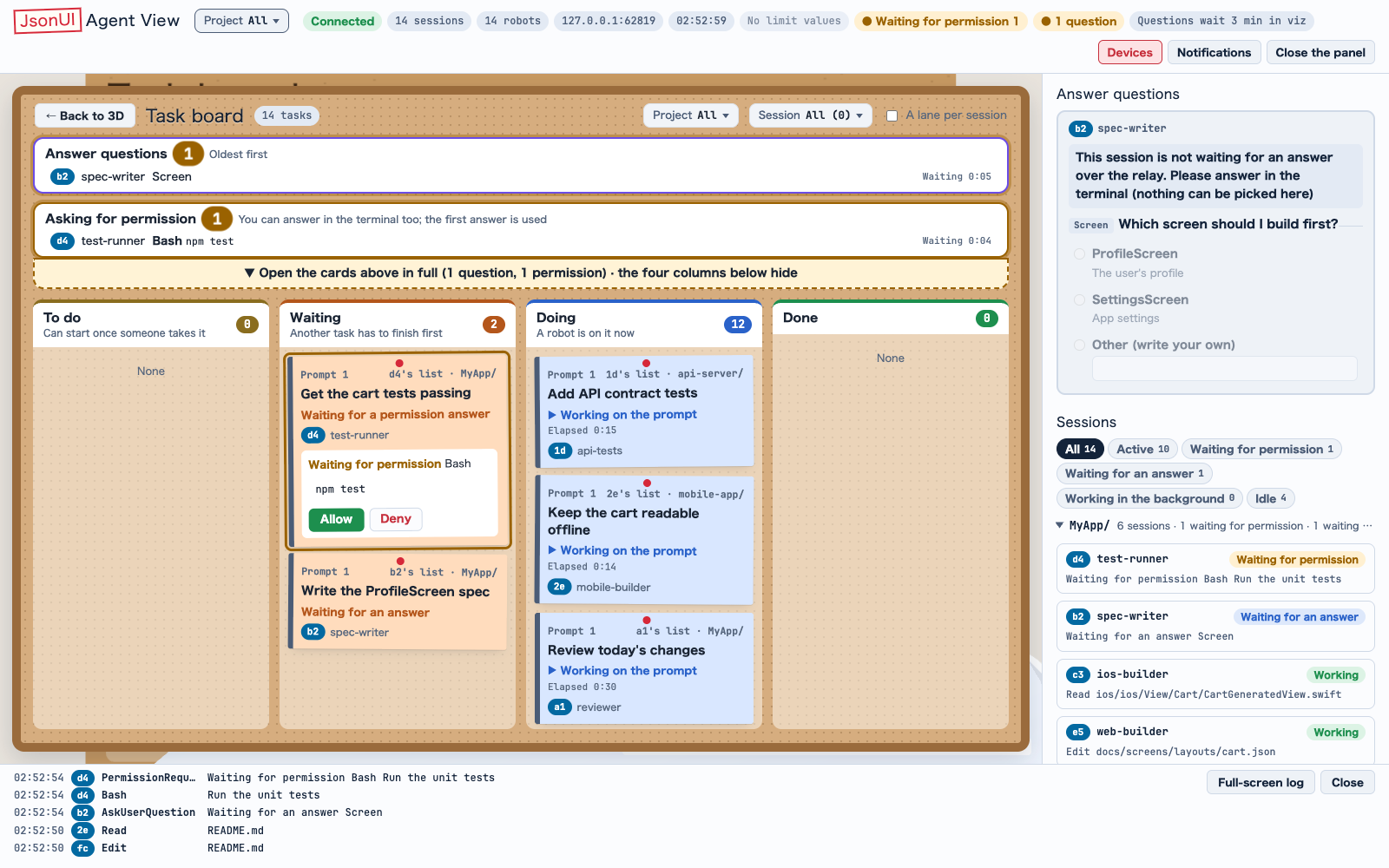
Task boardThere is a card for each instruction you give, titled by its first line. Tasks Claude creates with its task tools appear as well.A card's stateA card is working until the turn ends, waiting while a permission is asked, and failed if the turn fails. The last three finished turns of each session stay.
The task board with a question waiting in the folded strips.The strips at the topThe questions, stopped calls and permissions strips at the board's top are folded each time it opens: a count, and one line per card (who, the tool and its input, how long). A strip with nothing waiting is one line; a count with something waiting is drawn larger and pulses when a card comes.
• ▼ Open the cards above in full (…) · the four columns below hide (▼ この上の欄を広げて、札を全部見る(…)· 下の 4 列は隠れる) shows the whole cards and hides the columns.
• ▲ Fold the cards above · back to the four columns (▲ この上の欄をたたんで、下の 4 列に戻る) brings the columns back.
• Pressing a card's line opens the strips wide at that card.
LogThe log strip and the full-screen logThe strip at the bottom shows the latest events. The full-screen log can be filtered by kind and by text.
The strip can be closed: the view above takes the space, and Open the log (ログを開く) brings it back. The choice is remembered, and events keep coming in meanwhile.
The strip shows a hook's name (SessionStart …) in a code typeface.
The header and the page's words
Devices (デバイス): the machine's loadThe header's Devices (デバイス) button is coloured by this machine's load: the worse of the 1-minute load average per core (busy from 0.7, high from 1.0) and the free memory (busy under 25 %, high under 10 %; macOS's memory pressure, Linux's MemAvailable). It is read every 5 seconds without starting a command.
The box at the top of its pane says what it measures. Its head is CPU busy N % (the 1-minute load over the cores) with a bar marked at 100 %, and under it what 100 % means (every core in use; above it, the rest waits its turn). The 1, 5 and 15-minute averages follow on one small line with their way (rising, falling or steady), then Free memory N % of the total with a bar, and the colour rule in words (CPU yellow at 70 %, red at 100 %; free memory yellow at 25 %, red at 10 %; the worse of the two).
Devices (デバイス): who uses which deviceDevices (デバイス) N counts the devices up. Its pane lists the booted iOS simulators and the Android emulators and devices (by simctl and adb, every 10 seconds; no browsers).
Each shows who uses it, estimated from the record, in this order: a running test whose command names the device, else a process naming it under a session's process, else the last command that named it within 30 minutes. A robot that is gone or walking out names none.
Press a named row to go to that robot's room and pick it. Nothing is stopped from here.
Devices: live view onlyThe Devices (デバイス) button and pane exist only in the live view.
Change the language: see Set up.Usage limits in the headerThe header can show how much of the 5-hour and the weekly usage limits is used, and the time to each reset, e.g. 5h 42% (2:13 left) / 5時間 42%(あと 2:13).
1
Run `jui viz statusline install`. Add --dry-run first to see the change without writing.2
Keep at least one terminal claude running: the values only update while one does.3
Check what is installed with `jui viz statusline status`; undo with `jui viz statusline uninstall`.shell
jui viz statusline install --dry-runjui viz statusline installjui viz statusline statusWhat the install changesThe install writes the statusLine of ~/.claude/settings.json and keeps the file as it was in the backups folder of the state folder. A statusLine you already have is wrapped, not replaced: it runs with the same input, and what it prints and its exit status pass through unchanged.
Where the values come fromThe values come from Claude Code's statusLine, so they are only updated while a terminal claude is running. A session in the VS Code extension or in the Claude desktop app does not update them: neither runs the statusLine. One terminal claude running is enough.
Codex's limits beside themWhen Codex sessions run on the Codex daemon, Codex's 5-hour and weekly limits arrive from the daemon too; they need no install. Once a value has arrived, a Claude / Codex list appears in the header and picks which plan the limits show (this browser keeps the choice). Hovering over a limit shows that window for both plans. See Codex sessions. The limits and that list sit beside the page's title.
Reading the numbersThe number and its % turn from green to red as the share grows. At 100 they give way to At the limit (上限到達) in grey, with the time to the reset. A window whose reset has passed says Reset (リセット済み).
A value older than 15 minutes says how old it is, e.g. · 20m ago / · 20分前. With no value at all the header says No limit values (上限の値なし).
Where the values goThe values go only to the jui viz server on 127.0.0.1 and are kept in the state folder; nothing more is sent anywhere.
Keep reading
jui viz`jui viz` shows the Claude Code sessions and subagents running on your machine (and the Codex sessions too) as rooms and robots in the browser. Start with the demo below, then pick the article for what you want to do./viz
Skill spiritsThe spirits that appear when a session uses a skill, and how to bring in 3D models of your own./viz/spirits
Talk, prompts and notificationsReading the messages sessions send each other, sending a session a prompt from the page, and getting browser notifications./viz/sessions